How AI Simplifies Plugin and Theme Management
AI automates WordPress plugin and theme updates with compatibility scans, staging previews, and rollbacks to save time and prevent site errors.
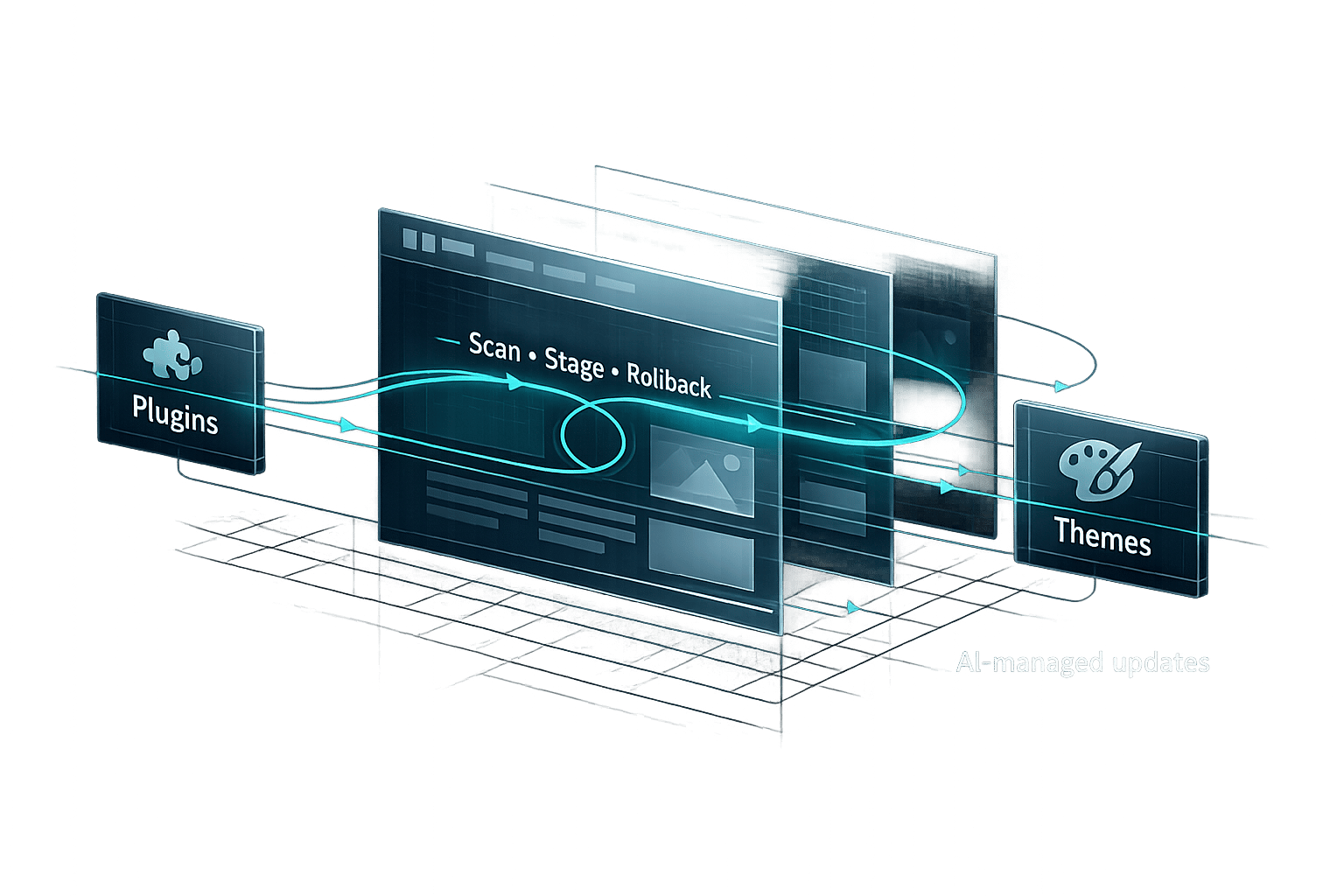
How AI Simplifies Plugin and Theme Management
AI tools are transforming how WordPress sites are managed, saving time and reducing errors. Managing plugins and themes manually can be tedious and risky, with issues like compatibility conflicts and troubleshooting consuming hours. AI-powered platforms like Kintsu.ai streamline this process by automating tasks such as updates, conflict checks, and theme customizations. Here’s what you need to know:
- Compatibility Checks: AI scans for potential conflicts before updates are applied, ensuring smoother operations.
- Automated Updates: Preview changes in a safe environment before they go live, reducing risks to your site.
- Conversational Management: Use simple commands like “Update plugins” or “Change theme colors” to make adjustments without technical expertise.
- Cost Savings: Kintsu.ai offers plans starting at $29/month, significantly cheaper than hiring developers or agencies.
This approach ensures WordPress management is faster, safer, and more accessible, even for non-technical users. Platforms like Kintsu.ai are leading the way by combining automation with user-friendly interfaces, making site management less of a hassle for everyone.
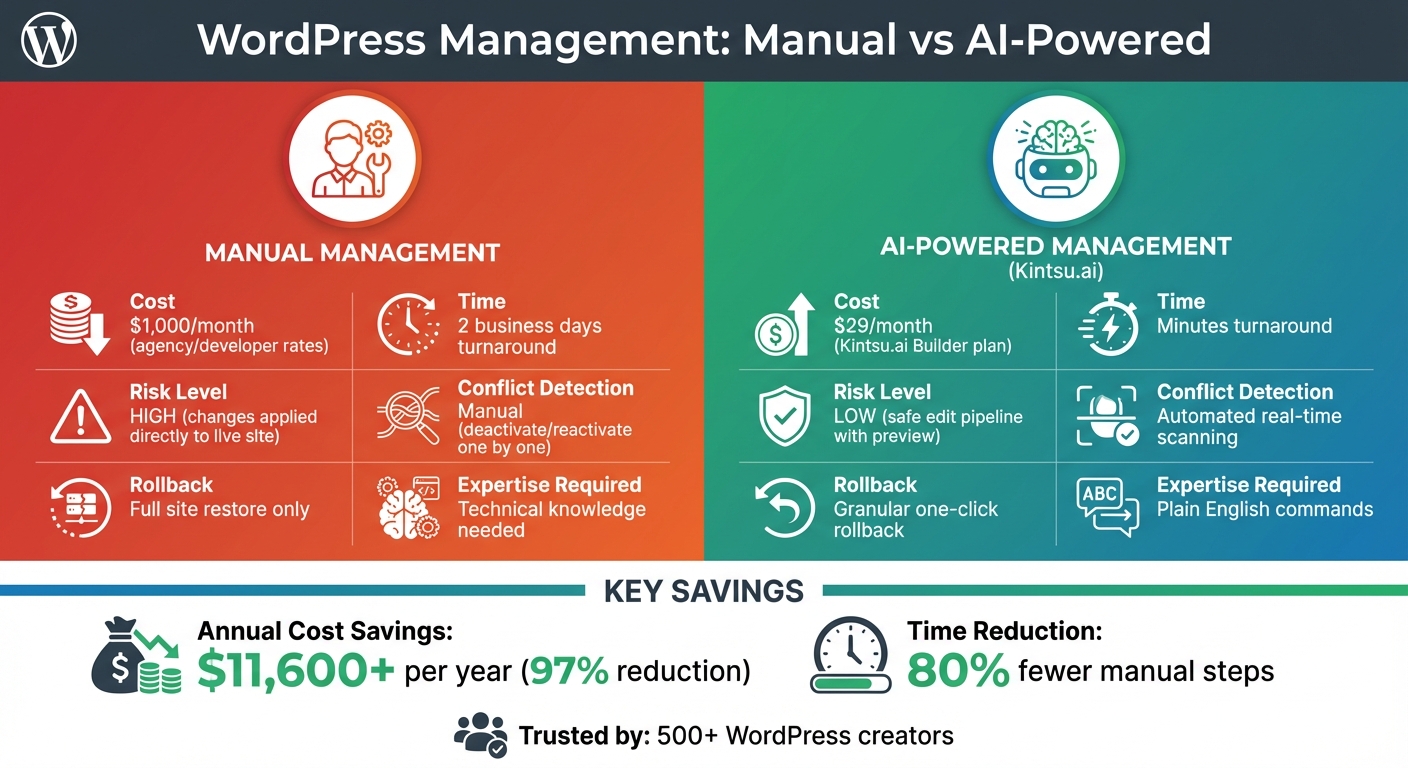
Manual vs AI-Powered WordPress Management: Cost and Time Comparison
WordPress AI Tutorial : Let AI manage your website
sbb-itb-42d7c06
Common Problems with Manual Plugin and Theme Management
Managing plugins and themes manually can be a real drain on your time and energy - time that could be better spent growing your site. One of the biggest headaches for WordPress users? Plugin conflicts. Let’s break down these challenges, starting with compatibility issues.
Compatibility Issues and Conflicts
When plugins don’t play nice with each other, chaos can ensue. These plugin-to-plugin conflicts happen when two extensions share overlapping code or functions, which can lead to crashes or even lock you out of your admin panel. Things get even messier with plugin-to-theme conflicts, which can cause layout issues or, worse, the infamous "white screen of death." As B.J. Keeton from Elegant Themes puts it:
"WordPress plugin conflicts are by far the most common issue that WP users face."
The tricky part? Some conflicts only show up under specific circumstances, like during a checkout process. Abandoned plugins - those that haven’t been updated to stay compatible with the latest WordPress versions - make matters worse, significantly increasing the risk of site-breaking problems. Without an automated system to catch these issues, you’re often left manually deactivating and reactivating plugins one by one to find the source of the conflict. It’s tedious, to say the least.
Time-Consuming Updates
Updating plugins and themes manually is a gamble. Changes are applied directly to your live site, meaning there’s no safety net if something goes wrong. Spotting conflicts between new updates, existing plugins, and your theme is nearly impossible until an issue arises. And without a clear record of what’s been changed, troubleshooting later becomes a guessing game.
Over time, quick fixes pile up - heavy scripts, unnecessary widgets, and other performance bottlenecks can slow your site to a crawl. On top of that, ensuring updates don’t break mobile layouts or violate accessibility standards requires constant attention and testing. It’s a time sink that can leave you feeling stuck in an endless cycle of maintenance.
Troubleshooting Errors
When errors pop up, diagnosing them without technical expertise can feel overwhelming. Performance issues from accumulated quick fixes can drag your site down, while broken layouts or missing functionality can hurt user experience - and your conversions. Worse, manual troubleshooting often overlooks how changes affect different devices, leading to inconsistent designs and misaligned layouts.
With no structured preview process, manual workflows force you to apply changes directly to your live site. This makes it tough to predict how updates will impact your site, and unforeseen plugin conflicts can break functionality in ways you might not notice immediately. And without version control, rolling back individual changes isn’t an option. Your choices often boil down to restoring your entire site or living with the problem until you can carve out hours to fix it.
These challenges highlight why a smarter, automated approach to plugin and theme management is so crucial. It’s not just about saving time - it’s about avoiding the headaches that come with manual workflows.
How AI Simplifies Plugin and Theme Management
AI tools are changing the way plugins and themes are managed, offering a safer and faster alternative to traditional methods. Instead of risking disruptions with every update, platforms like Kintsu.ai use a safe edit pipeline. This lets you preview changes before they go live, ensuring your production site stays intact.
The benefits are hard to ignore: AI-powered management slashes turnaround times from two business days to just minutes. It also dramatically cuts costs, dropping them from around $1,000 to only $29 per month - saving you over $11,600 annually. These tools streamline every step of the process, making plugin and theme management more efficient than ever.
Automated Compatibility Checks
One of the standout features of AI tools is their ability to handle compatibility issues in real time. Before any new plugin or theme update is applied, the AI scans your site for potential conflicts. It checks your CSS, layout, and functionality to identify risky changes. If something doesn’t look right, the system either suggests safer alternatives or flags the issue for your attention.
To prevent problems, updates are tested in a sandbox environment first. Features like automatic backups and one-click rollbacks mean you can quickly restore your site to a stable version if anything goes wrong. These safety measures, a key part of Kintsu.ai, give you peace of mind during updates.
Simplified Updates and Upgrades
Gone are the days of manually updating plugins and hoping for the best. AI introduces a preview-first workflow that lets you see the impact of changes in a staging environment before they go live. This is especially important for business-critical sites where downtime isn’t an option.
Granular rollbacks are another game-changer. If a specific update causes problems, you can undo just that change without affecting others. Plus, AI systems are designed to avoid performance issues by steering clear of heavy scripts and bloated widgets that often pile up with manual fixes. The result? A stable, high-performing site even during updates.
Conversational Interfaces for Management
AI also makes managing plugins and themes more intuitive. With tools like Builder Chat, you can handle everything using plain English. Forget about navigating confusing admin panels - just describe what you need. For example, you might say, “Update all plugins and check for errors” or “Fix the layout shift caused by the new slider plugin.” The AI understands your request and makes the necessary technical adjustments.
Kintsu.ai, trusted by over 500 WordPress creators, offers a free plan with 10 AI edit credits per month for one site. For more advanced needs, the Builder plan starts at $29 per month. This conversational approach bridges the gap between seasoned developers and users with no coding experience, making advanced site management accessible to everyone.
Step-by-Step Guide: Using Kintsu.ai for Plugin and Theme Management
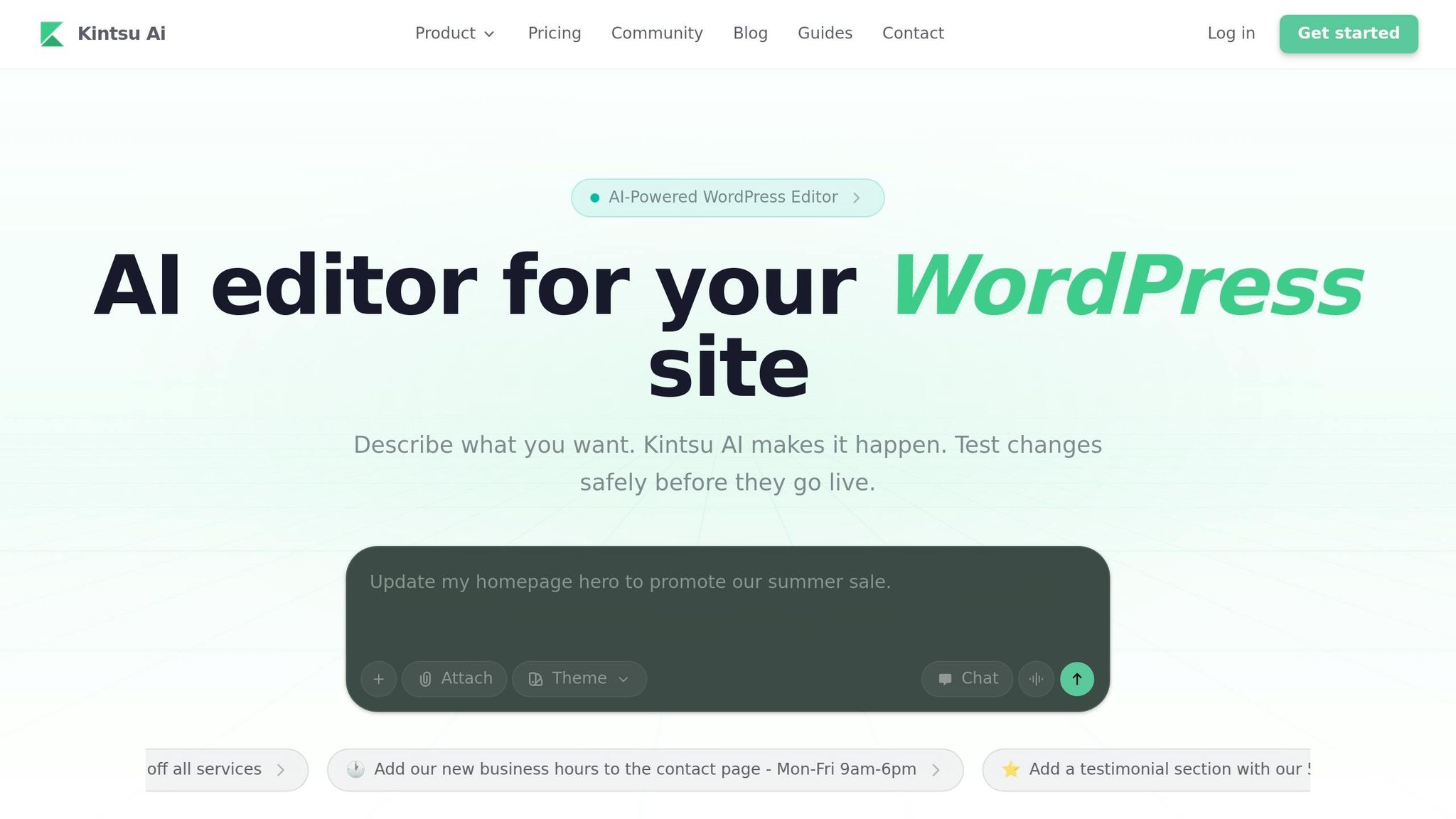
Setting Up Kintsu.ai with Your WordPress Site
Getting started with Kintsu.ai is quick and straightforward - it takes less than five minutes. To begin, ensure you have a WordPress site running version 5.0 or higher and administrative access. Start by signing up at kintsu.ai and generating an API key from your dashboard. Next, head to your WordPress admin panel, navigate to Plugins > Add New, and search for the Kintsu.ai connector plugin. Install and activate it.
Once the plugin is active, go to Tools > Kintsu.ai in your WordPress sidebar. Enter your API key to authorize the connection. Rest assured, the platform uses encrypted HTTPS connections and does not store your WordPress admin credentials - it only uses secure hashed access keys. After authorization, a new Kintsu.ai menu item will appear in your admin sidebar, giving you direct access to the conversational dashboard. This setup is compatible with multisite installations as well.
Using Prompts for Plugin Management
With the setup complete, managing plugins becomes as simple as typing a command. For example, you can say: "Install and activate the latest Yoast SEO plugin from the official repository" or "Install WP Rocket for caching and configure basic settings." Kintsu.ai handles everything from repository searches to compatibility checks and activation, cutting manual steps by 80% compared to traditional methods.
For updates or troubleshooting, try prompts like "Update all security plugins like Wordfence to the latest version and check for conflicts" or "Find and resolve any plugin conflicts causing white screen errors on the homepage." You can even perform compatibility scans with commands like "Scan all plugins for compatibility with WordPress 6.5 and flag conflicts." This proactive approach helps you avoid potential issues before they arise.
Now that plugin management is simplified, let’s dive into how Kintsu.ai enhances theme customization.
Customizing Themes with AI Assistance
Theme customization is just as effortless with Kintsu.ai. For instance, a command like "Change the theme colors to match my brand: primary blue (#003366), accent orange (#FF6600), and update the header background" applies precise styling updates. For more extensive changes, you can use prompts such as "Switch to Astra theme, import demo content, and make it fully responsive." Kintsu.ai handles CSS updates and even creates child themes to ensure your customizations remain intact during parent theme updates.
Need to switch themes entirely? Commands like "Switch from Twenty Twenty-Four to GeneratePress and customize footer with my logo" take care of everything. Kintsu.ai migrates settings, creates child themes following WordPress best practices, and properly enqueues new styles and scripts. Whether you're a developer or someone with no coding experience, this conversational approach makes advanced theme management accessible and stress-free.
Best Practices for AI-Powered Plugin and Theme Management
When using AI to manage plugins and themes, following these tips can help you get the most out of the tool while keeping your site secure and efficient.
Write Clear Prompts for Better Results
The way you phrase your AI requests plays a big role in the quality of the results. Studies show that clear, context-specific prompts can improve accuracy by 61% and lead to better outcomes for 78% of users. For example, instead of a vague request like "make my site faster", try something more specific: "Analyze the site for performance bottlenecks, focusing on N+1 query patterns and render-blocking CSS." This level of detail improves the relevance of the response by about 43%.
If you're targeting specific areas, like the homepage or a checkout page, include those details in your prompt (e.g., "Update the homepage hero section"). For complex tasks, such as modifying a checkout flow, be clear about what should and shouldn't change. For instance: "Add a gift message field to the WooCommerce checkout but do not alter payment or shipping logic." When troubleshooting, include exact error messages (e.g., "Uncaught TypeError") to help the AI diagnose the issue. If the AI's response misses the mark, ask for an explanation of its approach and request an alternative solution instead of repeating the same command.
Schedule Regular AI-Powered Maintenance
Regular maintenance is key to avoiding small issues that could snowball into bigger problems. Use automated sync schedules to keep your site's knowledge bases and embeddings up to date. Enable real-time conflict detection to catch potential issues with plugins or themes before they cause problems. For sites that are critical to your business, test any AI-powered maintenance tasks in a staging environment before making changes live.
Automating routine tasks can free up time for more strategic work. Use version control and rollback options to quickly undo any unwanted changes. Regularly review AI-generated audit trails to refine your maintenance processes and make troubleshooting easier.
Managing Multiple Sites with AI
If you’re managing several WordPress sites - like an agency or freelancer might - AI can help you scale your efforts more efficiently. Use conversational commands to apply consistent updates across multiple sites. Document your brand guidelines, such as colors, fonts, and spacing, so the AI can maintain uniformity across all properties. Take advantage of discussion modes to plan and fine-tune changes, ensuring each site gets the right updates while staying aligned with your brand.
Set up approval workflows to let stakeholders review changes before they go live, cutting down on revisions. Use guardrails to prevent risky changes that could break layouts or conflict with themes. Instead of overhauling entire sites, focus on small, incremental updates. This approach reduces risks, simplifies troubleshooting, and keeps your sites running smoothly, leaving you more time to focus on strategic tasks and client relationships.
Conclusion
Managing WordPress plugins and themes no longer has to be a tedious, time-consuming task. Thanks to AI-powered automation, tasks like compatibility checks and code editing have been transformed into a smoother, more intuitive process. This shift benefits everyone - from developers juggling multiple client sites to business owners managing their very first website.
With tools like Kintsu.ai, this streamlined approach becomes more than just an idea. Its conversational interface removes the need for navigating complex admin panels or diving into manual coding. Built-in safeguards and testing features help catch errors before they become problems, while offering professionals tools like audit trails and version control across multiple sites. For non-technical users, it empowers them to take control of updates, customizations, and routine maintenance - all without needing a developer's help.
The advantages go beyond convenience. These tools not only save time but also cut costs - up to 97% less than traditional agency rates. On top of that, they ensure consistency by enforcing WordPress coding standards, suggesting improvements for accessibility and SEO, and handling updates with ease, no technical expertise required. It’s a smarter, more efficient way to manage WordPress.
FAQs
Will AI updates break my live WordPress site?
AI updates with Kintsu.ai are designed with live WordPress sites in mind. Tools like safe previews and sandbox testing allow you to test changes thoroughly before making them live, reducing the chances of any disruptions.
Can I undo a single plugin or theme change?
Yes, you can reverse a single plugin or theme change in WordPress by using its built-in tools or backup solutions. Options like backup services or recovery tools can assist, but whether you can undo specific changes depends on the tools at your disposal. Make sure to choose tools that offer detailed change tracking to make the process easier.
Is Kintsu.ai safe to connect to my WordPress admin?
Yes, Kintsu.ai is built to securely integrate with your WordPress admin. It allows for controlled edits, giving you the ability to test and preview changes before they go live. This ensures a seamless and worry-free editing experience.