Best Practices for WordPress Update Notifications
Learn how to configure, automate, and troubleshoot WordPress update notifications, with best practices for backups, staging, timing, and monitoring.
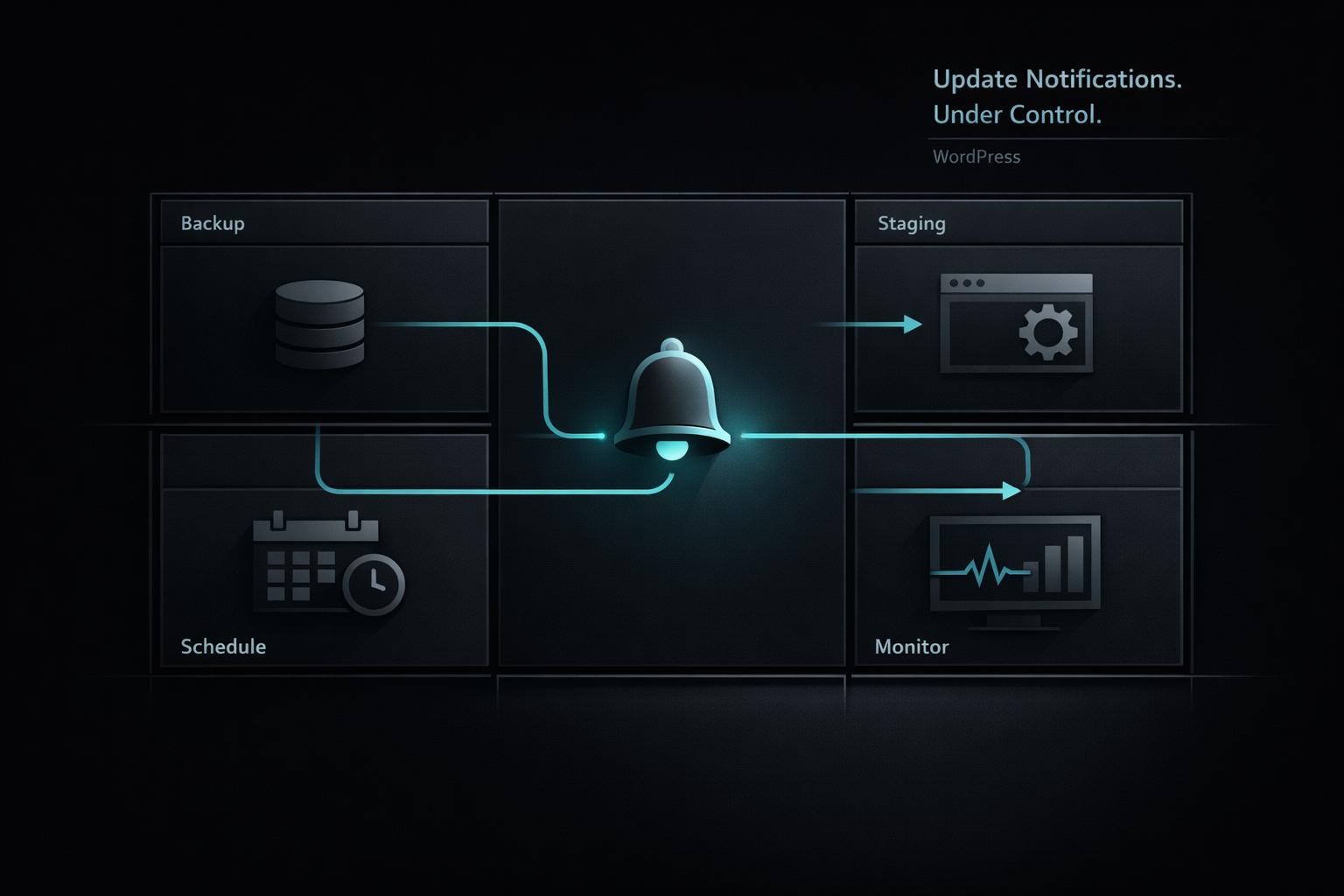
Best Practices for WordPress Update Notifications
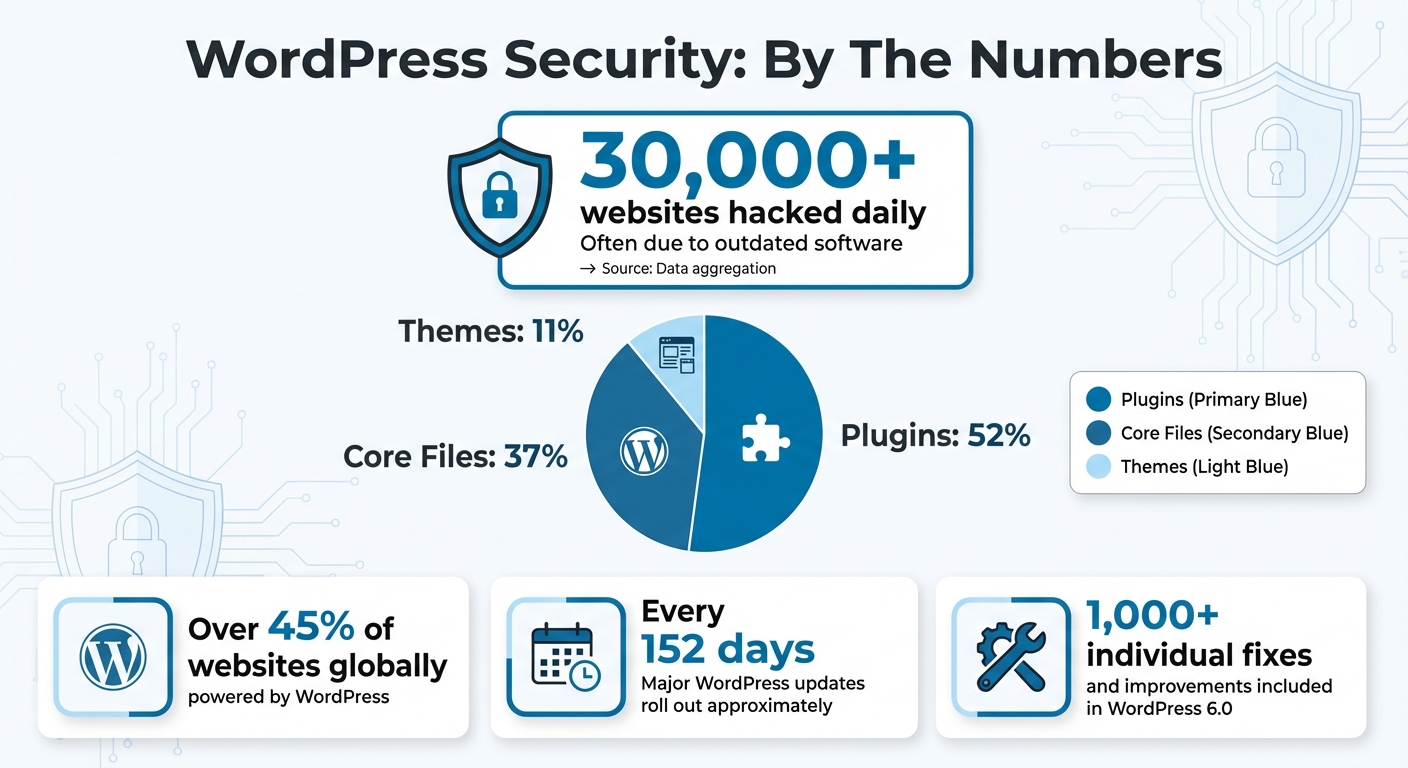
WordPress update notifications are critical for keeping your site secure, fast, and functional. Ignoring updates can expose your site to vulnerabilities, slow it down, and even lead to costly downtime. Over 30,000 websites are hacked daily, often due to outdated software. Here's what you need to know:
- Why they matter: Updates fix security flaws, improve performance, and ensure compatibility. Statistics show 52% of vulnerabilities come from plugins, 37% from core files, and 11% from themes.
- Types of notifications: WordPress alerts you about updates for core software, plugins, themes, translations, and PHP versions via dashboard notices or emails.
- Managing notifications: Use built-in WordPress settings or plugins to customize alerts. For example, you can toggle auto-updates or disable unnecessary email notifications using filters.
- Best practices: Always back up your site before updating, test updates in a staging environment, and schedule updates during low-traffic hours to minimize risks.
Automating notifications with plugins can streamline update management, reduce clutter, and ensure you’re always informed. Combine automation with manual oversight for a secure and efficient update process.
WordPress Security Statistics and Vulnerability Breakdown
☝️ How to Setup Email Notifications for WordPress Updates? Free Solution Tutorial 📧
Configuring WordPress Update Notifications
Setting up update notifications correctly is crucial for keeping your WordPress site secure and running smoothly. Starting with WordPress 5.5, you can manage auto-updates directly from your dashboard. Just head to Plugins > Installed Plugins or Appearance > Themes and toggle the auto-update option for each plugin or theme. This gives you basic control over updates before diving into more advanced options.
If you want broader control, you can modify the wp-config.php file using these constants:
define('AUTOMATIC_UPDATER_DISABLED', true);- disables all auto-updates.define('WP_AUTO_UPDATE_CORE', false);- disables only core updates.
These settings are handy if you prefer to manage updates manually or use a staging environment for testing.
Enabling and Disabling Default Notifications
WordPress doesn’t provide a built-in admin setting to toggle email notifications for updates. However, you can use code snippets in your theme's functions.php file or a code snippets plugin. For instance, to stop receiving email notifications after automatic core updates, add this filter:
add_filter( 'auto_core_update_send_email', '__return_false' );
To disable email notifications for plugins or themes, use these filters:
add_filter( 'auto_plugin_update_send_email', '__return_false' );
add_filter( 'auto_theme_update_send_email', '__return_false' );
If you want to remove the update notification bar from your dashboard, you can do so by removing its action hook:
remove_action( 'admin_notices', 'update_nag', 3 );
"The update notifications that WordPress provides can be useful for learning about newly available updates... However, you might want to disable them to reduce clutter in your WordPress dashboard or email inbox." - Jeremy Holcombe, Senior Editor at Kinsta
Customizing Notification Preferences
For those who prefer not to deal with code, plugins can simplify notification management. Tools like WP Updates Notifier allow you to customize alert settings, including how often updates are checked - hourly, daily, or weekly - and send notifications to multiple email addresses. Another option, WP Mail SMTP Pro, includes an "Email Controls" feature that lets you toggle specific alerts for plugin, theme, or core updates directly from the dashboard.
Since WordPress 5.5, email notifications are sent after every auto-update attempt for plugins and themes, whether successful or not. To prevent excessive emails, WordPress limits failure notifications to one per version. For even more control, you can customize these emails - adjusting the recipient, subject line, or content - using the auto_plugin_theme_update_email hook.
Keep in mind, WordPress uses PHP's mail() function by default, which can sometimes send notifications to spam folders. To ensure important updates reach your inbox, consider installing an SMTP plugin like WP Mail SMTP. This ensures reliable email delivery for all your WordPress notifications.
Using Plugins to Manage Update Notifications
Overview of Notification Management Plugins
Plugins can take update notifications to the next level by offering advanced automation features that go far beyond basic email alerts. With these tools, you can schedule update checks at intervals that suit your needs - hourly, daily, or weekly - and receive alerts through various channels like email, Slack, custom webhooks, or even RSS feeds.
These plugins cater to a wide range of needs. For instance, some provide daily summary digests in their free plans, while premium versions unlock features like instant alerts and integration options. Others include centralized dashboards where you can manage updates across multiple sites, track failed updates, and even add rollback protection as an extra layer of security.
For those looking for more advanced functionality, premium plugins often include visual regression testing. This feature compares screenshots of your site before and after updates, helping you catch any changes that could break your site. If an update fails a health check, these tools can automatically restore the previous version from a backup and notify you immediately. By integrating seamlessly with your workflow, these plugins help you stay on top of updates without constant manual oversight.
Benefits of Automated Notification Plugins
Automated notification plugins do more than just expand your alert options - they make managing updates significantly easier. Instead of logging into multiple dashboards to manually check for updates, these tools notify you the moment updates are available. This gives you control over when and how updates are applied, a crucial advantage for mission-critical sites where unexpected changes could cause disruptions.
Another big advantage is how these plugins help combat "update fatigue." If you're tired of seeing endless red notification dots in your dashboard, these tools can consolidate alerts into scheduled digests or focus only on critical updates, such as security patches for active plugins and themes. This approach keeps your inbox manageable while ensuring you stay informed.
For teams managing multiple client sites, these plugins offer even more flexibility. You can set different recipients for notifications - routine success messages can go to your team, while clients are only alerted to failed updates or issues that need immediate attention. This tailored approach keeps communication clear and efficient while maintaining control over update workflows.
sbb-itb-42d7c06
Best Practices for Responding to Update Notifications
Pre-Update Checklist
Before diving into updates, make sure to back up your entire site. With WordPress powering over 45% of websites globally, even small updates can sometimes cause unexpected issues. A complete backup acts as your safety net, ensuring you can restore your site if anything goes wrong.
Run updates on a staging site first to identify any layout or functionality problems. Reviewing changelogs is also essential, as they highlight potential breaking changes and security fixes. For instance, the WordPress 6.0 update introduced over 1,000 individual fixes and improvements. These steps help you prepare for a smoother update process.
Disable caching and security plugins temporarily during updates to prevent partial installations. If your site hasn’t been updated in a while, apply updates incrementally instead of jumping straight to the latest version. This method reduces the risk of major failures.
"Keeping WordPress up to date is critical for your site's security, performance, and functionality. Running an outdated version is like leaving your shop's front door unlocked overnight."
– Jason Cosper, WordPress Product Advocate, DreamHost
Scheduling Updates
Once your site is ready, timing your updates can help reduce risks. Schedule them during low-traffic hours, typically between midnight and 4:00 a.m., to avoid disrupting users. Pete Schiebel, Technical Account Manager at WordPress VIP, recommends planning updates for times when any potential issues would cause the least inconvenience.
For non-security updates, you might want to wait about a week before applying them. This delay gives developers time to fix bugs reported by early adopters. With major WordPress updates rolling out roughly every 152 days, you can plan your update schedule accordingly. Keep a log of each update, including the version and date, to make troubleshooting easier in future maintenance cycles. After scheduling, don’t forget to check your site’s performance immediately after the update.
Post-Update Monitoring
After completing updates, thorough monitoring is key to catching and addressing any problems quickly. Start by clearing all caches - WordPress, server, CDN, and browser - since outdated cache files can cause broken layouts or functionality issues.
Test essential site functions, such as contact forms, checkout processes, logins, and search capabilities, right away. Also, check your homepage, product pages, and blog posts for layout glitches or missing images. If you deactivated plugins during the update, reactivate them one at a time, testing your site after each to pinpoint any conflicts.
Use the "Site Health" tool under Tools to check for Cron task issues. If you see a "Briefly unavailable" message, delete the .maintenance file via FTP to resolve it. To maintain stability, set up monitoring tools like UptimeRobot for downtime alerts and check Google Search Console for crawl errors or broken links. These steps ensure your site stays functional and secure after updates.
Troubleshooting and Optimizing Notification Systems
Once you've set up your notification system, it's important to troubleshoot and fine-tune it to ensure updates are delivered efficiently and without issues.
Testing and Debugging Notification Issues
If notifications aren't working as expected, start by checking email delivery. WordPress relies on the PHP mail() function, which can sometimes cause problems. To bypass these issues, consider installing an SMTP plugin like WP Mail SMTP. This ensures emails are routed through a more reliable method.
Another potential issue lies with WordPress's lazy cron system, which only runs when someone visits the site. On low-traffic sites, this can result in missed notifications. Use the Site Health tool to identify cron issues, and if necessary, set up a dedicated cron job to keep things running smoothly.
Most notification plugins include a test email feature to help you verify that everything is working. For instance, WP Updates Notifier has a "Save settings with test email" option that sends a sample message to your inbox. If the test email doesn't arrive, the problem is likely with email delivery rather than WordPress itself. If notifications suddenly stop working after an update, try deactivating plugins one by one to pinpoint any conflicts.
Once you've resolved email and cron-related issues, focus on reducing unnecessary alerts to streamline your system.
Disabling Unnecessary Notifications
Too many notifications can bury the important ones. To cut down on noise, you can disable nonessential alerts by adding filters to your functions.php file. For example, use this filter to stop email alerts for automatic plugin updates:
add_filter('auto_plugin_update_send_email', '__return_false');
Make sure you're sending the right type of notification through the appropriate channel. For instance, critical security updates should trigger immediate emails or push notifications, while less urgent plugin updates can appear as dashboard notices. On multi-user sites, you might want to hide update notifications from users who don't have the authority to act on them. For example, you can remove the update nag for users without the update_core capability, keeping the dashboard cleaner for content creators and editors.
Integrating with Monitoring Tools
For more robust monitoring, integrate external tools like UptimeRobot to get instant alerts about downtime. If you're managing multiple sites, centralized dashboards can consolidate notifications for security issues and updates, making it easier to stay on top of everything.
Advanced users can take it a step further by redirecting WordPress notifications to platforms like Slack or Discord using their APIs. This way, your technical team can receive critical updates without needing to log in to each site. Some notification plugins also include file logging, which keeps a record of all sent alerts. This can be incredibly helpful for troubleshooting missed notifications.
Lastly, if you're dealing with heavy update cycles, consider increasing your PHP Max Execution Time to 50%-75% of your server's limit. This adjustment can help prevent timeouts during the process.
Conclusion
Keeping your WordPress site updated isn't just a technical chore - it’s a critical layer of protection against potential threats. Ignoring updates can leave your site exposed to vulnerabilities, which could lead to serious consequences for businesses of any size.
The smartest way to manage updates is with a mix of automation and manual oversight. Automate minor security patches to ensure quick fixes while reserving major updates for manual handling after thorough staging tests. Aim to apply critical security patches within 24–48 hours of receiving notifications, and always back up your site before making changes. This balanced approach combines the efficiency of automation with the precision of human judgment.
Updates do more than just secure your site - they also improve performance, SEO, and compatibility. Google considers site security a ranking factor, so outdated software could quietly hurt your search rankings. Regular updates also help meet legal requirements like GDPR and CCPA by ensuring your site follows essential security protocols. By staying on top of updates, you strengthen your site’s security, enhance its performance, and align with compliance standards.
For those managing multiple WordPress sites, tools that simplify the update process are game-changers. Kintsu.ai offers an AI-driven platform that allows you to manage updates in real time through a conversational interface - no coding required. This saves time while ensuring your sites remain secure and up-to-date, making it easier to stay ahead of potential issues.
FAQs
What’s the best way to automate WordPress update notifications?
To keep track of WordPress updates with ease, consider setting up notifications that alert you whenever updates are available for the WordPress core, themes, or plugins. A straightforward option is enabling email notifications, which ensures you're informed about critical security updates and new features without needing to check your admin dashboard constantly.
By default, WordPress automatically updates minor releases. If you want to include major updates as well, you can configure this through your settings or use plugins designed for the task. This approach minimizes manual effort and helps ensure your site remains current.
For a more advanced option, tools like Kintsu.ai offer a seamless way to manage updates. Its AI-driven conversational interface provides real-time alerts and allows you to handle updates effortlessly, ensuring your site stays secure and operates smoothly.
What should I do before updating WordPress?
Before updating WordPress, there are a few steps you should take to keep your site secure and running smoothly:
- Create a full backup: Make sure to back up everything - your site files and database. This way, if something goes wrong during the update, you can quickly restore your site to its previous state.
- Review the release notes: Take a moment to read through the update details. Understanding what’s included can help you spot potential issues or changes that might affect your site.
- Test the update on a staging site: If you have access to a staging environment, apply the update there first. This lets you catch and resolve any problems without risking your live site.
- Check compatibility of plugins and themes: Ensure your plugins and themes work with the new WordPress version. Update them individually if needed to prevent conflicts.
Taking these precautions will help reduce risks and ensure your site stays functional throughout the update process.
How do I customize WordPress update email notifications?
You can tweak WordPress update email notifications to suit your needs by using plugins designed for managing alerts. These plugins let you control notifications for updates to plugins, themes, or the WordPress core. This way, you can decide how and when you receive updates, instead of solely relying on dashboard notifications.
For those managing multiple sites or looking for more advanced options, some tools allow you to handle notifications across all your sites, set custom alert frequencies, or even turn off specific automatic updates. This level of control keeps you informed about important changes without overwhelming your inbox.