Automated Backups vs Manual Backups
Compare manual vs automated WordPress backups—learn pros, cons, costs, and when to use each to protect your site from data loss.
Automated Backups vs Manual Backups
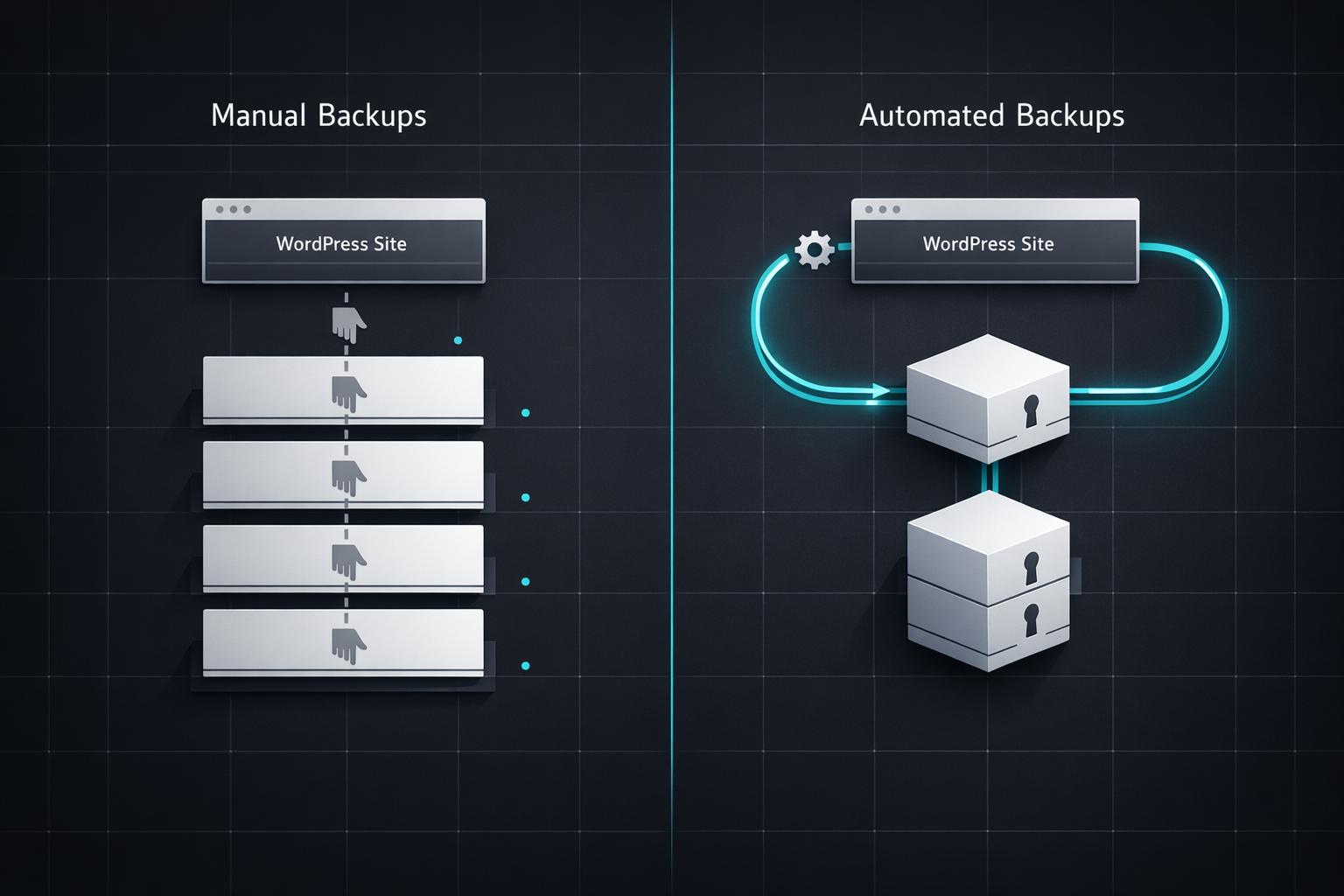
- Manual Backups: You control when and where to back up. It's free but time-consuming and error-prone, requiring technical skills like using FTP and phpMyAdmin.
- Automated Backups: These work on a schedule or in real-time, ensuring consistency without manual effort. They cost $22–$150/year but offer convenience, off-site storage, and one-click restoration.
Quick Comparison
| Feature | Manual Backups | Automated Backups |
|---|---|---|
| Reliability | Prone to human error | Consistent and dependable |
| Ease of Use | Requires technical skills | Simple setup via plugins |
| Time Efficiency | Time-intensive | Runs automatically |
| Cost | Free tools | $22–$150/year |
| Restoration | Manual, multi-step process | One-click restoration |
For static sites with minimal updates, manual backups might suffice. For dynamic or high-traffic sites, automated backups are the smarter choice. Both methods aim to safeguard your data, but automation saves time and reduces risks.
Manual vs Automated Backups: Complete Feature Comparison
When Is Manual Backup Better Than Automatic Backup?
sbb-itb-42d7c06
How Manual Backups Work
Manual backups require you to start the process yourself every time, usually before making big changes like updating the WordPress core or installing a new theme. This method acts as a safety net in case something goes wrong.
A complete manual backup involves two main steps: downloading your website files and exporting your database. The files include everything you see on your site - like themes, plugins, images, and media uploads. The database holds your posts, comments, user details, and site settings. As WordPress Developer Resources explains: "Your WordPress database contains every post, every comment and every link you have on your blog. If your database gets erased or corrupted, you stand to lose everything you have written". Skipping either the files or the database means your backup won’t be complete.
Steps for Manual Backups
To back up your files, you’ll typically use an FTP or SFTP client such as FileZilla or WinSCP. These tools connect to your web server, allowing you to download the WordPress root directory - usually named public_html, www, or public - to your computer. Two parts are especially important: the wp-content folder (which stores user-generated content) and the wp-config.php file (which contains your database login details). Depending on your site’s size and internet speed, downloading everything could take anywhere from a few minutes to over an hour.
For the database, you’ll use phpMyAdmin, a web tool available through your hosting control panel. Once you select your WordPress database, click the "Export" tab. You can choose "Quick" to export everything in SQL format or "Custom" to pick specific tables and compress the file into formats like .zip or .gz. Some hosting services, such as cPanel, offer a "Download a MySQL Database Backup" feature that creates a compressed .gz file for you. After downloading both the files and the database, it’s recommended to keep 3–5 recent backups stored in different places - like your computer, cloud storage (e.g., Google Drive or Dropbox), and your hosting server - for added security.
While manual backups give you control, they aren’t without their downsides.
Challenges of Manual Backups
Manual backups can be tedious and prone to mistakes. You need to remember to perform them regularly, and if you forget to back up before a crash or hack, any updates or content added since your last backup will be lost. Human error is another big risk - whether it’s forgetting to export the database, missing hidden files like .htaccess, or downloading the wrong folder entirely. Managing storage can also become a hassle, as multiple backups can quickly fill up your hard drive unless you use compression tools like 7-Zip.
Security risks add another layer of concern. In 2020, third-party themes and plugins were responsible for 96.22% of detected security vulnerabilities in WordPress, with roughly 70 million active and vulnerable installations identified. Without automatic scheduling, manual backups leave your site vulnerable during the periods between backups.
How Automated Backups Work
Automated backups rely on specialized software - such as plugins or hosting services - to regularly create copies of your website's database and files without any manual effort. Unlike manual backups, which are prone to human oversight, automated systems ensure consistent protection. Once configured, these backups run on a schedule you define, requiring no further input. For high-traffic websites or online stores, real-time backups are particularly useful, as they capture changes immediately.
Many modern systems use incremental backups, which only save files that have changed since the last backup. This approach reduces both server strain and storage usage. Advanced solutions even initiate backups from external cloud servers, further easing the load on your hosting server. As SolidWP explains:
"Cloud-first means that we are initiating the backup from SolidWP's cloud servers... the fact that all of the horsepower comes from our side means we are not taxing the resources of the hosting server."
This method offers a stark contrast to manual backups, which require users to remember and initiate the process themselves.
Setting Up Automated Backups
Getting started with automated backups using a plugin is straightforward. Here’s how it typically works:
- Install and activate a backup plugin.
- Connect the plugin to a cloud storage service like Google Drive, Dropbox, or Amazon S3.
- Set your backup frequency - options include hourly, daily, weekly, or monthly, depending on how often your site content changes.
- Select what to back up - you can choose the entire site or just specific parts.
- Enable the backup schedule and save your settings.
If you’re using managed hosting, the process is even easier. Many managed hosting providers include automated backups as a default feature when you set up your account, eliminating the need for additional configuration. Some plugins also integrate with WordPress's update system, creating backups automatically before updating core files, themes, or plugins. For plugins that rely on WordPress's internal cron job, scheduling backups during peak traffic times ensures they run consistently.
Once set up, automated backups not only simplify the process but also add an extra layer of security for your data.
Benefits of Automation
Automated backups take the stress out of remembering to secure your site. Andrea Zoellner from Jetpack sums it up perfectly:
"Automation is the foolproof way of making sure you're never caught out."
These backups run quietly in the background, reducing the risk of human error. Additionally, they provide off-site storage redundancy by sending backup copies to secure cloud servers. This ensures your data is safe and accessible even if your hosting server encounters problems. For example, Jetpack VaultPress Backup has performed over 269 million backups in the past decade, showcasing the reliability of such systems. Many solutions also include one-click restoration, letting you quickly restore your site to a specific point in time through a simple dashboard interface.
Automated vs Manual Backups: Direct Comparison
When weighing automated backups against manual ones, it's essential to look at how they measure up in terms of reliability, ease of use, time efficiency, and cost.
Manual backups require significant effort and careful management. As your site grows or undergoes frequent updates, this method can quickly become unmanageable. You’ll need to remember to perform backups regularly, follow multiple steps accurately, and handle storage yourself.
Automated backups, on the other hand, operate on a schedule or even in real time. They eliminate the need for constant monitoring, capturing both files and databases simultaneously. These backups are stored securely off-site in the cloud and often include verification to ensure data integrity. While automated solutions come with a yearly fee ($22–$150), this cost is minimal compared to the potential financial impact of losing critical data.
Comparison Table
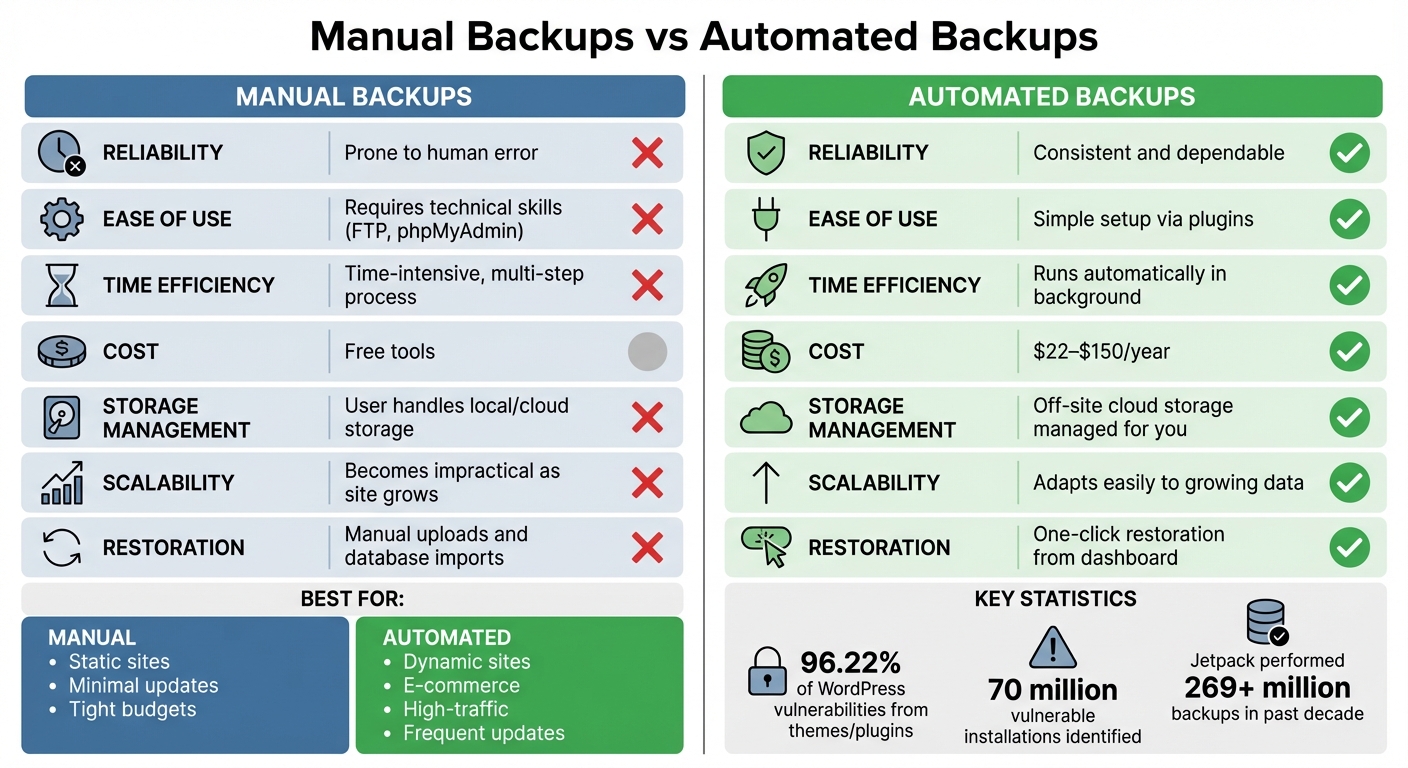
| Factor | Manual Backups | Automated Backups |
|---|---|---|
| Reliability | Prone to human error | Highly reliable with scheduled or real-time backups |
| Ease of Use | Requires technical knowledge (e.g., FTP, phpMyAdmin) | Simple setup via plugins |
| Time Efficiency | Time-consuming with multiple steps | Runs automatically without user input |
| Storage Management | User handles local or cloud storage (e.g., USB, Dropbox) | Off-site cloud storage managed for you |
| Scalability for Large Sites | Becomes impractical as site size increases | Adapts easily to growing site data |
| Cost | Free tools but requires significant time investment | Subscription fees ($22–$150/year) |
| Restoration Complexity | Involves manual uploads and database imports | One-click restoration from the dashboard |
This comparison highlights the convenience and reliability of automated backups, especially for larger or frequently updated sites. While manual backups might seem cost-effective at first glance, the time and effort they demand can outweigh their initial savings.
Pros and Cons of Manual Backups
Weighing the hands-on control of manual backups against their time-consuming nature is crucial to understanding their practicality.
Advantages
Manual backups give you complete control over the process. You decide exactly what to back up, when to do it, and where the files will be stored. This kind of precision is especially useful before major updates - like domain migrations or design changes - when having an accurate snapshot of your site is essential.
Another big plus is security. By skipping third-party backup plugins, you minimize vulnerabilities that could come from external tools. Manual backups eliminate these risks entirely.
And let’s not forget the cost savings. Using free tools like FileZilla for FTP transfers and phpMyAdmin for database exports means avoiding the $22 to $150 annual fees charged by many automated backup services. However, these benefits come with trade-offs in terms of time, complexity, and the potential for mistakes.
Disadvantages
Despite their advantages, manual backups come with notable challenges. The most obvious is the time and effort involved. Backing up manually requires connecting to FTP/SFTP, downloading files, exporting databases via phpMyAdmin, and managing your own storage. As Will Morris from ManageWP puts it:
"While there are benefits to manual backups, this is a multi-step process that requires ongoing time and effort. As a busy website owner, it can be easy to fall behind on them, which can lead to disaster".
There's also the risk of human error. Unlike automated tools that often check for data integrity, manual backups might not catch transfer issues, leaving you with incomplete or corrupted files.
For dynamic websites, manual backups can quickly become impractical. Sites that require frequent updates - like eCommerce platforms, active forums, or blogs with constant new content - might need backups as often as every hour. Manual methods simply can't keep up with that demand.
Finally, the technical skills required can be a hurdle. Navigating FTP clients, cPanel, and database management tools isn’t exactly beginner-friendly and can be intimidating for less tech-savvy users.
Pros and Cons of Automated Backups
Automated backups shift the responsibility of safeguarding your site to a system that works on a set schedule. This approach ensures consistent protection without requiring manual intervention. While they share the same goal as manual backups - keeping your site secure - their methods and efficiency differ. Understanding their strengths and weaknesses will help you decide if they’re the right fit for your needs.
Advantages
One of the biggest perks of automated backups is their reliability and time-saving nature. They minimize human errors, such as forgetting to back up or accidentally deleting files, while operating quietly in the background. This allows you to focus on your business without worrying about backup tasks. As Simon Keating from Automattic points out:
"Using an automated method of backing up your WordPress site will not only save you time and money, but will likely give you more consistent, reliable backups."
Real-time backups are another standout feature. They record every change as it happens, making them far more efficient than manual methods. Additionally, automated systems often store data securely in the cloud, protecting your backups even if your primary server fails or is compromised. Restoring data is usually straightforward too - many systems offer one-click restoration, keeping downtime to a minimum.
Cost-wise, automated solutions are often reasonable. For instance, CloudAlly starts at $3 per user per month, while Jetpack Personal offers daily backups and a 30-day archive for about $39 annually. When compared to the time and effort required for manual backups, these prices are often a worthwhile investment.
These features underscore how automated backups can streamline and improve site management, but they’re not without their challenges.
Disadvantages
One of the main drawbacks is the ongoing cost. Unlike manual backups, which are essentially free, automated solutions require recurring payments, with popular plugins costing anywhere from $22 to $150 per year.
Another issue is dependency on service uptime. If your WordPress hosting provider experiences downtime or technical problems, some backup plugins might fail when you need them most. Rob Pugh from Automattic cautions:
"If your hosting provider experiences an outage, your server is down, you may lose access to all your backups."
Automated backups can also impact site performance. Backup plugins sometimes add extra load to your server, which could slow down your site. On top of that, third-party plugins may introduce security risks. A study revealed that themes and plugins accounted for 96.22% of detected security vulnerabilities in WordPress.
Storage and compatibility limitations are another concern. Some services cap storage at 1GB or 10GB, and not all solutions support configurations like WordPress Multisite. Before committing to a premium service, it’s essential to check whether it aligns with your site’s specific requirements.
Choosing the Right Backup Method for Your Website
Your website's activity level plays a big role in determining the best backup strategy. Factors like how often your content changes, the type of data you manage, and your technical skills should guide your choice. For instance, a personal blog updated once a month has very different needs compared to an online store processing dozens of orders daily.
When to Choose Manual Backups
Manual backups work well for sites with minimal updates - think static portfolio websites, landing pages, or hobby blogs that only change every few months. If your site doesn’t handle user registrations, comments, or transactions, backing up weekly or monthly is often enough. For those with tight budgets or infrequent site updates, this method can be a practical choice.
On top of being budget-friendly (since they’re free), manual backups only require your time and a tool like FileZilla. Always remember to back up your site manually before making major changes, such as migrating to a new host, updating WordPress core, or changing your site’s theme.
When to Choose Automated Backups
Dynamic websites with frequent updates are better suited for automated backups. These are essential for e-commerce platforms, news sites, membership forums, and high-traffic blogs where content changes regularly. Rob Pugh from Jetpack highlights this distinction:
"A static website that isn't updated with new content very often may only need daily backups. A busy e-commerce site, on the other hand, should have real-time backups to minimize loss of customer or product data."
Automated backups are also crucial for sites with multiple contributors, as they allow quick recovery from accidental errors. Complex setups, like WordPress Multisite networks, benefit from these solutions as well. If you’re not technically inclined, automated tools simplify the process with features like one-click restores, reducing downtime and stress. For high-activity sites, daily backups are the bare minimum.
While automated solutions typically cost between $22 and $150 per year for popular plugins, the expense is often justified when you consider the potential losses from data breaches or extended downtime. Weigh your site’s update frequency, complexity, and your own technical comfort to decide which backup method ensures the best reliability and recovery speed for your needs.
Key Takeaways: Efficiency, Reliability, and User Experience
Automated backups are a game-changer for efficiency, running quietly in the background and capturing every change as it happens. As Jen Swisher, Customer Experience Specialist at Jetpack, puts it:
"The 'automatic' part is crucial here, as it means that these backups are created without any manual intervention and are ready to be restored at a moment's notice".
Unlike manual backups, which only capture a single point in time, automated backups ensure your site data is always current. This continuous safeguarding eliminates the delays and risks associated with manual methods, which rely heavily on user input and are prone to human error. The added benefit? Automated tools store your data in secure, encrypted off-site locations, so even if your hosting server fails, your backups remain safe and accessible.
The user experience is another standout feature. Automated backups follow a "set it and forget it" approach, letting you focus on growing your site instead of being bogged down by routine technical tasks. Kevin MacGillivray, Chief Marketing Officer at Pressable, highlights this advantage:
"Automated backups eliminate the dedicated time needed to execute a manual backup. This frees up staff time to focus on other mission-critical tasks and initiatives".
Beyond saving time, automated backups allow for quick restoration, keeping downtime to a minimum.
For those seeking even more streamlined site management, Kintsu.ai offers a unique solution. By combining AI-powered updates with robust automated backups, Kintsu.ai simplifies managing your site. Its conversational interface eliminates the need for juggling multiple plugins or workflows, making it accessible even if you're not tech-savvy.
FAQs
What are the key benefits of automated backups compared to manual backups?
Automated backups bring a host of benefits that make them a smarter and more dependable option for protecting your WordPress website compared to manual backups.
For starters, they work on a set schedule, ensuring your site data is backed up regularly without you having to lift a finger. This eliminates the risk of forgetting or making mistakes, which is especially critical for websites that are updated often. You’ll always have an up-to-date copy of your site ready to go.
Another big plus? Automated backups save you time. Instead of manually backing up your site (and possibly missing something), these systems handle it for you. Many also store your backups in secure off-site locations, like cloud storage, adding an extra layer of protection and making recovery much simpler if something goes wrong. On the other hand, manual backups rely entirely on you to remember and carry out the process, leaving more room for outdated or incomplete backups.
In short, automated backups offer a hassle-free, consistent way to safeguard your website, letting you focus on running your business or creating great content.
How can I decide if automated backups are right for my website?
When deciding between automated and manual backups, it all comes down to your website's specific needs, how much convenience you’re looking for, and how important it is to safeguard your data. Automated backups are a go-to solution for most websites because they operate on a schedule. This means your site gets backed up regularly without you needing to remember or take action, minimizing the risk of forgetting - especially during critical updates or changes.
For websites with dynamic content, e-commerce transactions, or a significant role in your business, automated backups offer consistent protection. They can run daily or even hourly, ensuring your data is always up to date. On the other hand, manual backups rely on your memory and effort, which increases the chance of human error and leaves your site exposed if backups aren’t done regularly. If you’re looking for a dependable and hassle-free way to prevent data loss, automated backups are the smarter choice.
What are the risks of depending only on manual backups?
Relying solely on manual backups can leave your website exposed to a variety of risks. One of the most common pitfalls is human error - like forgetting to back up your data regularly or saving files incorrectly. Plus, if your backups are stored on local devices, they’re at risk of physical damage, theft, or hardware failures, which could result in losing critical data.
Automated backups offer a dependable alternative. They ensure your data is consistently protected without requiring you to remember or manage the process yourself. By eliminating the chances of oversight, automated backups help maintain your website's stability and reduce the chances of unexpected downtime.