How AI Simplifies Live Theme Customization
Turn plain-English design requests into live WordPress theme changes with AI—no coding, safe previews, and easy exports.
How AI Simplifies Live Theme Customization
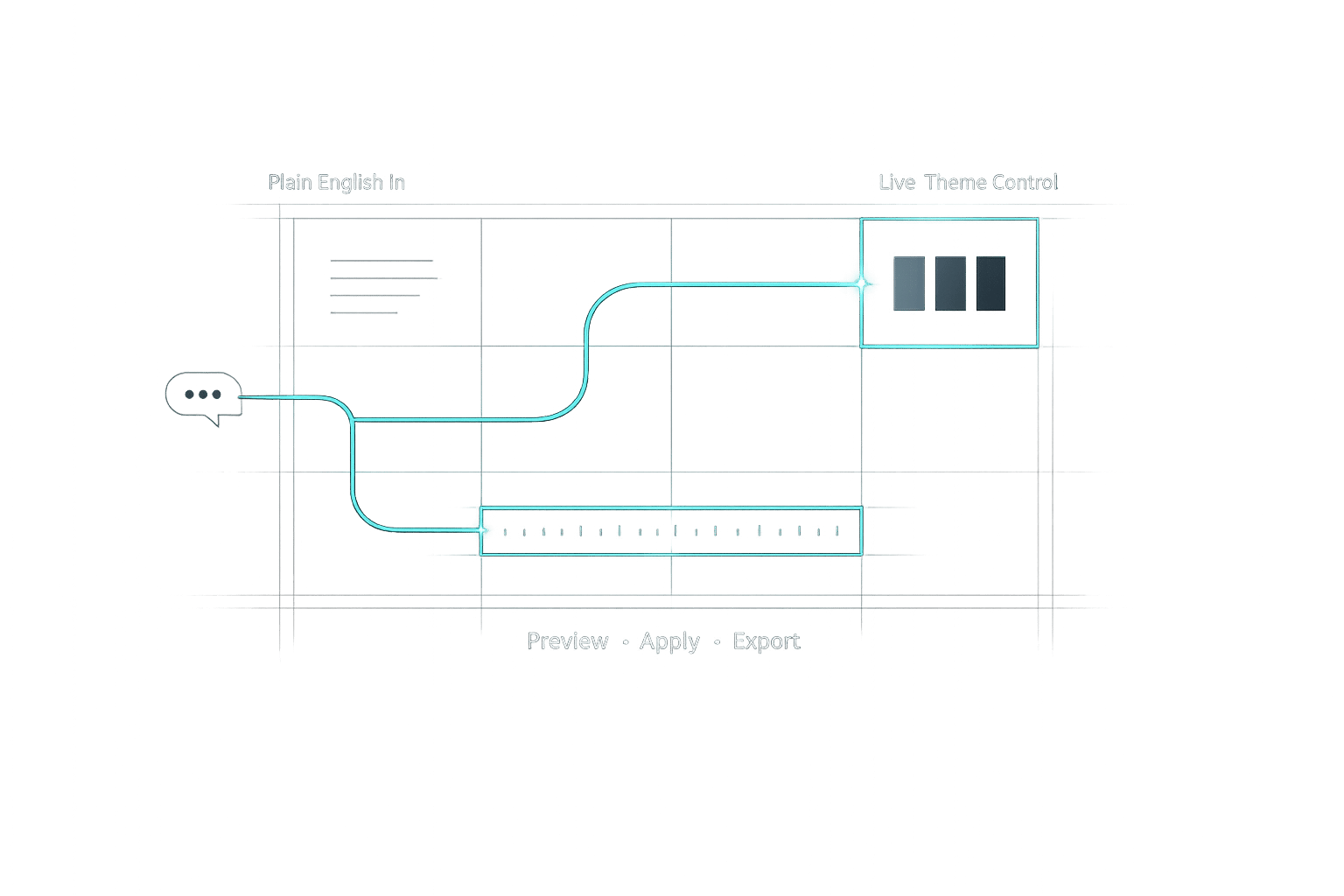
Customizing WordPress themes used to be time-consuming and required technical skills. Kintsu.ai changes that by letting you describe design changes in plain English, and the AI handles the rest - no coding needed. For example, say, “Make this section feel more premium,” and it adjusts layouts, styles, and components automatically.
Key Features:
- Conversational Editing: Type requests like “Change header color to blue,” and see instant previews.
- Quick Setup: Connect your site in under 5 minutes.
- Safe Testing: Preview changes in a sandbox before publishing.
- Affordable Plans: Free plan with 10 AI credits; Pro plan starts at $24/month.
Whether you're a beginner or managing multiple sites, Kintsu.ai makes theme customization faster and easier. Ready to simplify your design process? Keep reading to learn how to get started.
Getting Started with AI-Powered Theme Customization
How to Set Up Kintsu.ai for WordPress in 5 Steps
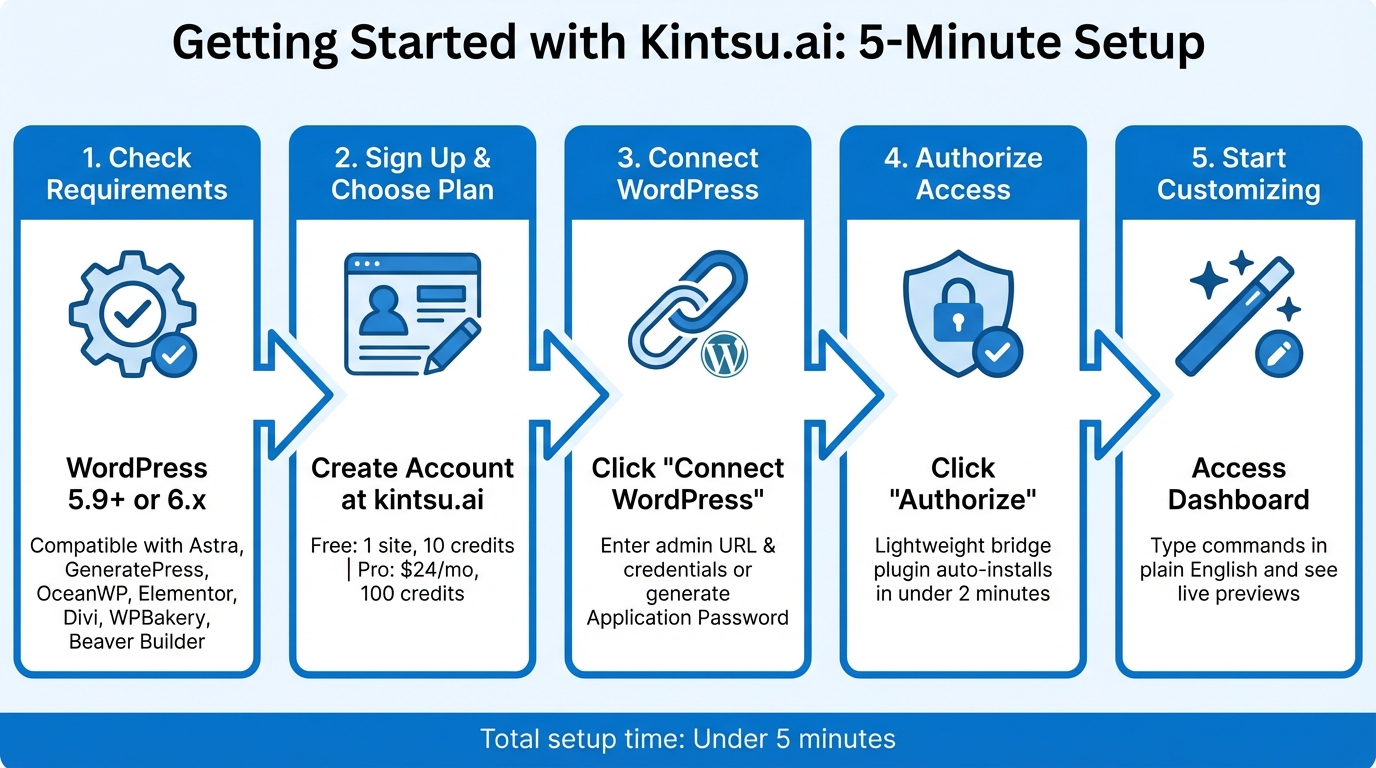
To use Kintsu.ai with your WordPress site, make sure your setup meets these basic requirements: your site should run WordPress 5.9 or later (including all 6.x versions) and be hosted on a standard provider like WP Engine, Kinsta, SiteGround, or Bluehost. Kintsu.ai is compatible with nearly any theme, whether you're using Astra, GeneratePress, OceanWP, or a custom design. It also works seamlessly with popular page builders like Elementor, Divi, WPBakery, and Beaver Builder.
Setting Up Kintsu.ai for WordPress
Getting started is quick and straightforward. Head to kintsu.ai, sign up with your email or via Google/WordPress.com, and enter your site URL. Kintsu.ai offers two plans: a Free Plan, which includes 1 WordPress site and 10 AI edit credits, and a Pro Plan at $30/month (or $24/month if billed annually) with 100 credits.
After creating your account, log into your Kintsu.ai dashboard and click "Connect WordPress." You’ll need to provide your site’s admin URL and credentials or generate an Application Password in WordPress (navigate to Users → Profile). Once you’ve entered the details, click "Authorize" to grant access. Kintsu.ai will automatically install a lightweight bridge plugin, completing the connection in under two minutes. You’ll get live status updates during the process.
"The platform connects to your existing WordPress site via a lightweight plugin and uses advanced AI to understand your intent and execute precise edits safely." – Kintsu.ai FAQ
Understanding the Kintsu.ai Dashboard
Once your site is connected, the Kintsu.ai dashboard becomes your hub for theme customization. The interface is split into two sections: on the left, you’ll see a live preview of your WordPress site with real-time updates for both desktop and mobile views. On the right is a conversational input box where you can type natural language commands, like "Make header background blue."
The dashboard also includes an element picker, which lets you hover over and select specific parts of your page, along with undo/redo buttons for quick fixes. There’s even an AI suggestions panel that offers recommendations for improving your site’s style.
New users are guided through a brief welcome tour to get familiar with the basics. For instance, try typing something like "Center the logo and change navigation font to bold 18px Arial" into the chat box. The AI will automatically locate the relevant CSS selectors, generate the necessary code, and show you a split-screen preview of the changes. Click "Apply" to make the updates live - no coding skills required.
Other handy features include a Discussion Mode, where you can brainstorm changes without impacting your live site, and a Sandbox environment for testing modifications safely before publishing.
sbb-itb-42d7c06
Step-by-Step Guide: Customizing Themes with AI
Describing Changes Using Natural Language
Kintsu.ai stands out by letting you customize themes through a conversational interface. Just type your request in plain English, and the AI translates it into precise code. For example, you could write, "Change the header to deep blue (#003366) and set navigation text to 18px Arial" or "Switch blog posts to a centered, two-column layout." Whether you're super detailed or just give a general idea like "Make this section feel more premium", the AI adapts to your input.
It also understands context, so you can narrow down changes with phrases like "On the homepage hero", "Only in the footer", or "On mobile only." This flexibility makes live theme editing straightforward and intuitive.
Applying and Previewing Updates
Once you submit a prompt, Kintsu.ai follows a structured and safe process. It analyzes your theme and generates CSS or JavaScript changes on custom stylesheets without altering your live site. You'll see a side-by-side preview in a live iframe, showing the "before" and "after" views of your changes.
The preview includes tools to toggle between desktop, tablet, and mobile views, automatically simulating how your updates will look across devices. You can resize the preview window in real time to check layouts and test interactive elements like button hovers. When you're happy with the results, click "Apply" to publish the changes. If something doesn't look right, reject the preview and try again - your live site stays untouched until you're ready.
Fine-Tuning Specific Elements
Refining your design is simple with Kintsu.ai's iterative prompts. You can start by selecting an element using the picker tool or typing something like "Highlight the footer." Then, add follow-up instructions to tweak the details. For instance, if you're working on buttons, you might start with "Enlarge all CTA buttons" and then refine with "Add a gradient from #FF6B6B to #4ECDC4 and include a shadow." For headers, you could say, "Simplify header to logo left, menu right" and follow up with "Reduce logo height to 60px and add animation to the menu on scroll."
Each adjustment updates the preview instantly. Plus, the AI keeps a version history, so you can undo changes if needed. This step-by-step refinement process is especially handy for fixing issues like mobile alignment - such as stacking footer links vertically on screens under 600px - or adjusting spacing, like setting a 15px margin for social icons. The AI handles the coding for you, generating targeted CSS like .cta-button { border-radius: 25px; background: linear-gradient(...); }. Once you're satisfied, you can save and export your fully customized theme.
Saving and Exporting Customized Themes
When you customize your theme using Kintsu.ai, your changes are automatically saved thanks to its built-in version control system. Every modification is logged with a detailed audit trail that tracks what was changed, where it occurred, and when it happened. This makes it easy to review and revert to earlier versions if needed.
To ensure added security, Kintsu.ai creates automatic backups before implementing major changes to your theme, plugins, or database. If you're about to make significant customizations, you can also manually trigger a backup through the Kintsu dashboard. This extra step helps safeguard your work during major updates.
Exporting your theme is a simple process. For WordPress 6.0 and newer, the platform includes a built-in export tool. Navigate to Appearance > Editor, click the three-dot "Tools" icon, and choose "Export." This will download your theme, along with all customizations, as a .zip file. The .zip file contains both the theme files and any changes stored in the database, bundled together for convenience.
For more advanced export options, you can install the free "Create Block Theme" plugin from the WordPress repository. Once installed, go to Appearance > Create Block Theme and choose "Export Zip" to download your customized theme. Alternatively, you can use the "Save Changes to Theme" option to write database-stored customizations directly into the theme files, making them permanent. This plugin also lets you create child themes, which are a great way to safeguard your customizations when the parent theme is updated.
Before exporting, make sure to update your style.css metadata, including the theme name, version, and author details, for easy identification. Adding a unique screenshot.png file will make your customized theme visually distinct in the WordPress dashboard. Finally, always test your exported themes in a staging environment before deploying them to a live site.
Troubleshooting Common Issues
Running into problems during live theme customization? You're not alone. A frequent issue is preview mismatches, where changes don't show up as expected on different devices. According to WordPress forums, caching causes about 60% of these inconsistencies. To fix this, clear your browser cache, purge your site cache (using tools like WP Super Cache), and test the site in an incognito window. If you're working with Kintsu.ai, make sure to preview your changes across various device sizes for consistency.
Another common hurdle is unresponsive prompts. This can happen if your instructions are too vague. Instead of broad commands, use precise directives like, "Change header color to blue" or "Center the footer text on mobile screens under 768px." If the AI still doesn't respond, try waiting 1–2 minutes for rate limit resets, check your internet connection, or restart your dashboard session.
"Avoid generic and broad prompts... Make your prompts more detailed and specific." - Kintsu.ai
Integration errors can also crop up, often caused by plugin conflicts or outdated WordPress versions. To resolve these, deactivate conflicting plugins and ensure both WordPress and your theme are updated. If needed, re-enter your API key through the dashboard. You can also use prompts like "Debug integration with my active theme" to let the AI pinpoint conflicts. For more detailed error logs, enable WordPress debug mode by adding define('WP_DEBUG', true); to your wp-config.php file.
For responsive layout issues, such as your theme losing adaptability on smaller screens, ask the AI to add media queries for screens under 600px. Use browser developer tools to test your site across various device sizes. Kintsu.ai's fine-tuning interface allows you to tweak elements without altering your core theme files, ensuring your changes remain safe and reversible. Also, keep an eye on your credit balance - each edit costs 0.5 credits, while full theme customizations cost 1.5 credits.
When error messages appear during saving or exporting, check that your WordPress directory permissions are set to 755. If large CSS files cause export failures, use AI commands like "Optimize and minify this CSS" to shrink the file size. Kintsu’s "Safe Export" feature can bundle your changes into a compatible format, and the platform automatically creates backups before major updates, safeguarding your work.
Conclusion
Kintsu.ai takes the headache out of WordPress theme customization, offering a seamless setup and user-friendly editing experience. With its AI-powered theme customization, you can skip the coding entirely. Just describe the changes you want, and watch as they come to life in real time. The live preview system ensures you can test ideas without risking your site’s functionality. Plus, built-in safeguards keep your original theme files intact, guaranteeing compatibility with future updates.
This tool provides high-quality results for everyone - from beginners to seasoned developers - by delivering responsive designs, consistent branding, and clean code. And all of this comes without the hefty price tag. With a free plan and affordable credit options, professional-grade results are now within reach.
"Move from 'can you change this?' to 'it's done' using conversation-driven edits that respect the reality of WordPress." - Kintsu.ai
Whether you’re troubleshooting an outdated site, aligning scattered design elements, or starting fresh, Kintsu.ai can handle tasks that used to take hours in just minutes. With a 14-day money-back guarantee on paid plans and a growing community of over 500 WordPress creators, you’re joining a platform designed for efficiency and creativity.
Ready to simplify your WordPress theme customization? Visit https://kintsu.ai and turn your ideas into polished, live updates.
FAQs
Will this break my theme updates?
Using Kintsu.ai for live theme adjustments is crafted to be secure and avoids causing issues with theme updates. Built-in safeguards help prevent conflicts with layouts or themes. That said, if you're making major changes - particularly with themes that include custom code or intricate setups - it's a smart move to test these updates in a staging environment first. This way, you can ensure everything works seamlessly without impacting your site's functionality.
Where are the AI-made changes stored?
Changes made by AI are instantly saved to your WordPress site. With Kintsu.ai, updates happen in real-time according to your instructions, making the process smooth and hassle-free - no coding or technical skills required.
How do I undo or roll back edits?
To reverse or undo changes made using Kintsu.ai, leverage the rollback feature specifically built for this task. This tool allows you to examine recent edits and restore earlier versions as necessary. For more detailed instructions, check out Kintsu.ai's review and troubleshooting resources, which outline clear steps to identify and revert changes efficiently.