How Conversational AI Simplifies Debugging
Use conversational AI to diagnose WordPress errors, detect plugin conflicts, and apply sandboxed, step-by-step fixes without coding.
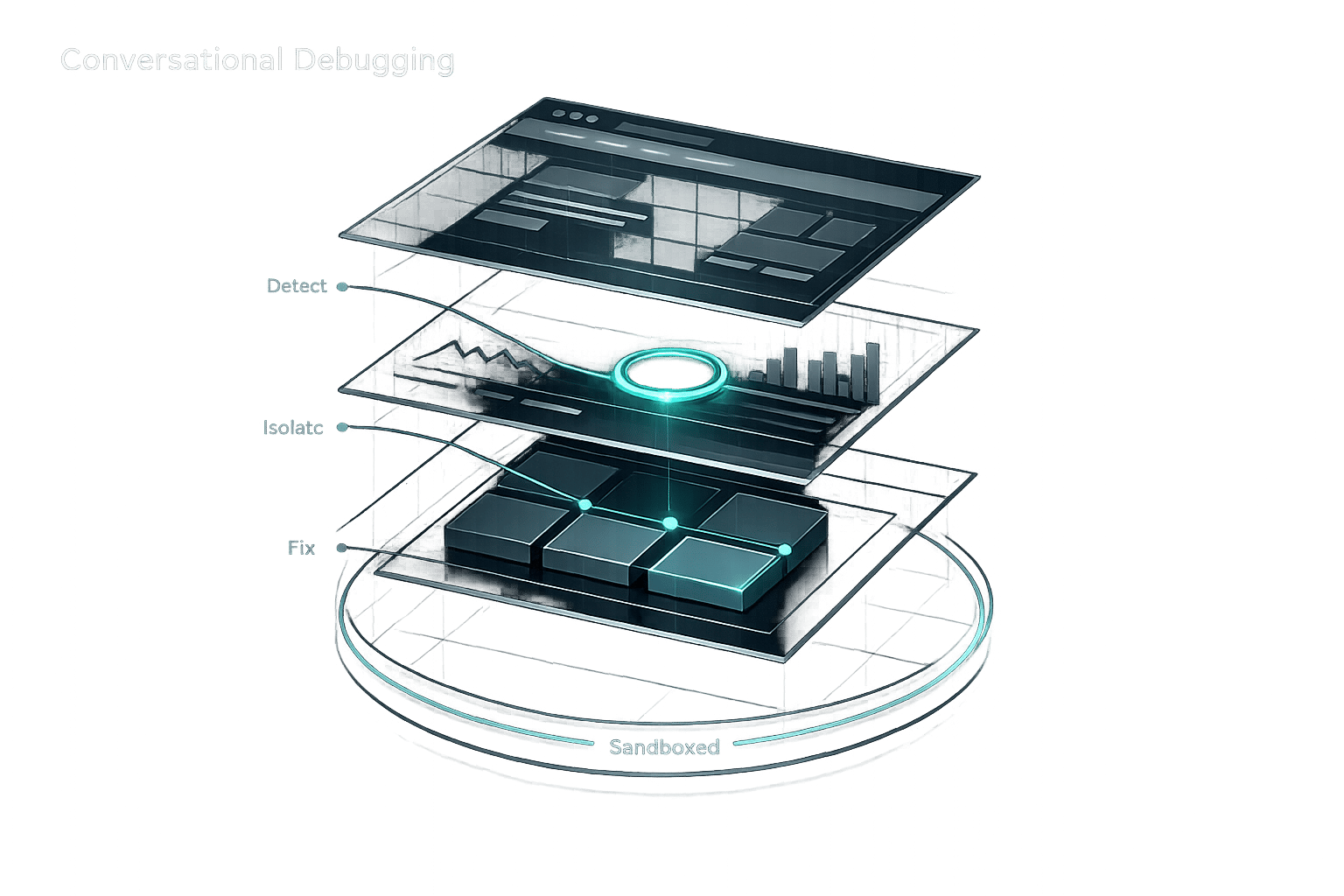
How Conversational AI Simplifies Debugging
Debugging WordPress can be overwhelming, but conversational AI makes it easier by letting you describe problems in plain English and receive actionable solutions. Instead of sifting through error logs or relying on technical expertise, conversational AI translates complex issues into simple steps, saving time and reducing frustration.
Key Benefits:
- Quick Issue Detection: Automatically identifies errors like plugin conflicts, missing brackets, or database issues.
- Step-by-Step Guidance: Offers clear instructions to resolve problems without needing coding skills.
- Safe Fixes: Changes are tested in a sandbox environment before going live, with rollback options available.
- Custom Solutions: Tailored advice based on your WordPress setup, including themes and plugins.
Platforms like Kintsu.ai provide tools such as real-time error analysis, plugin conflict detection, and guided troubleshooting, making WordPress maintenance accessible for developers and non-technical users alike.
If you're managing a WordPress site, conversational AI can save you hours of manual debugging while keeping your site running smoothly.
What is Conversational AI in WordPress Troubleshooting?
Conversational AI Defined
Conversational AI is a tool that allows you to interact with systems using natural language, either through text or voice. Unlike basic chatbots that rely on specific keywords, it uses advanced language processing to grasp the intent and context of your message. Over time, it learns from interactions, enabling you to describe issues - whether vague or detailed - and receive clear, actionable responses.
For WordPress users, this means you can ask technical questions in plain English and get instant, relevant answers. Whether you're dealing with a vague problem like "my homepage looks broken" or a specific error message in your logs, conversational AI can interpret your input and provide tailored guidance. This makes it particularly helpful for troubleshooting complex issues, such as plugin conflicts caused by theme incompatibilities.
Let’s look at how this technology integrates with WordPress to make troubleshooting easier.
Conversational AI in WordPress
When built into WordPress platforms, conversational AI becomes a virtual troubleshooting assistant. It can analyze code, identify bugs, and guide you through resolving issues step by step. These tools are familiar with WordPress-specific elements like hooks, filters, and template hierarchies, which allows them to detect both syntax errors (like missing brackets) and logical issues (such as incorrect conditional statements).
Here are the key features that make this possible:
- Intent Recognition: Translates natural language inputs (e.g., "make this section look more professional") into actionable design or code changes.
- Contextual Understanding: Keeps track of details like the page, section, or device you're referring to.
- Real-Time Guidance: Provides immediate, clear instructions based on your problem description.
Some advanced systems even prevent potential issues by identifying plugin conflicts before changes are applied. This eliminates the need for tedious trial-and-error debugging by offering precise, context-aware solutions through semantic search and dynamic responses.
| Feature | How It Works in WordPress Debugging |
|---|---|
| Intent Recognition | Turns natural language requests (e.g., "checkout page won’t load") into specific technical solutions. |
| Contextual Understanding | Tracks your WordPress setup - active themes, plugins, PHP version - to provide accurate advice. |
| Real-Time Guidance | Delivers step-by-step troubleshooting in plain English. |
| Code Analysis | Reviews code snippets to find bugs, suggest fixes, and recommend safer coding practices. |
For users without technical expertise, conversational AI simplifies WordPress maintenance. You can describe problems in everyday terms, and the AI will analyze error logs, assess the issue, and explain the solution in a way that's easy to understand. Tools like Kintsu.ai take this concept further by enabling real-time updates through a conversational interface - just describe the changes you want, and the system manages the technical side for you.
sbb-itb-42d7c06
How I Debug WordPress Plugins with Claude AI (No More Rejections!)
Problems with Manual WordPress Debugging
Manual vs AI-Powered WordPress Debugging Comparison
Common Debugging Issues
WordPress problems can bring your site to a standstill. One of the biggest headaches? Plugin conflicts. When multiple plugins rely on the same resources or outdated functions, they can clash, leading to unpredictable errors that are tough to pinpoint. Add to that theme incompatibilities, especially when themes have been heavily customized, and troubleshooting becomes even more challenging.
Then there are WordPress-specific errors that don’t offer much help upfront. For instance, the dreaded "White Screen of Death" (WSOD) or the "Error establishing a database connection" message often leaves users staring at a blank screen with no clear direction. On top of that, poorly optimized SQL queries - like unindexed meta queries or using 'orderby => "meta_value"' - might work fine for smaller sites but can bog down performance as your database grows. This can slow page loads and make the admin dashboard painfully sluggish. These hurdles highlight why manual debugging can feel like an uphill battle.
Why Manual Debugging Falls Short
Manual debugging is a time sink. It can take hours or even days to isolate the root cause of a problem. As WordPress expert Eric Karkovack puts it:
"Just think of how many hours we've spent debugging. They account for many long days and nights."
This method demands a deep understanding of PHP, SQL, and WordPress hooks, plus access to sensitive files through SSH or SFTP. For users without technical expertise, this can be a major roadblock.
The process often turns into a frustrating game of trial and error. Developers might deactivate plugins one by one or tweak code blindly, hoping to stumble upon a fix. This approach is risky - it’s easy to introduce new bugs or create security issues. Something as small as a missing bracket or typo can wreak havoc. As ClickGiant explains:
"An error that cannot be easily identified can waste hours of time and company money"
Another problem? Information overload. Digging through massive error logs or stack traces can feel like searching for a needle in a haystack. Fixing one issue might not even solve the real problem, leaving developers stuck in endless error loops.
Manual vs. Conversational AI Debugging
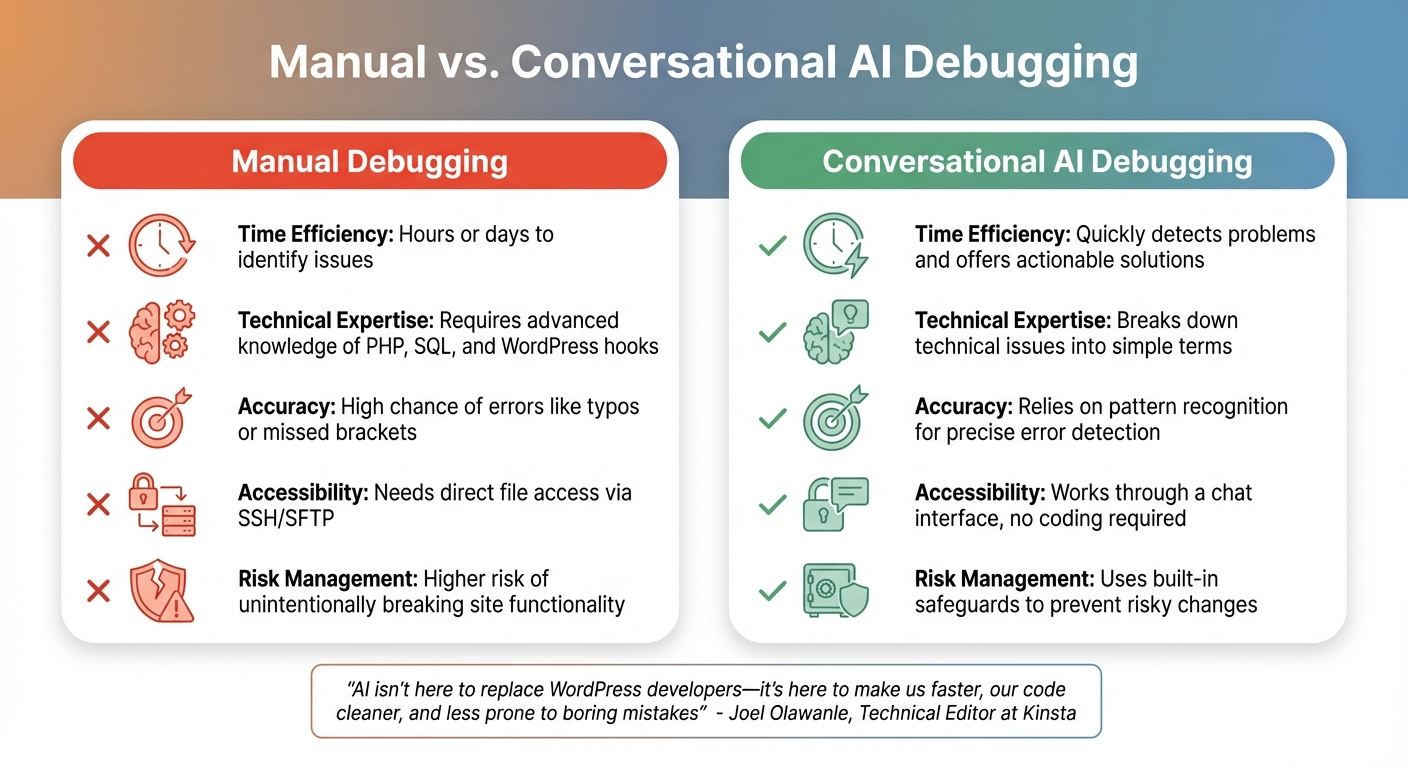
When you compare manual debugging to conversational AI debugging, the differences are striking:
| Feature | Manual Debugging | Conversational AI Debugging |
|---|---|---|
| Time Efficiency | Can take hours or days to identify issues. | Quickly detects problems and offers actionable solutions. |
| Technical Expertise | Requires advanced knowledge of PHP, SQL, and WordPress hooks. | Breaks down technical issues into simple terms. |
| Accuracy | High chance of errors like typos or missed brackets. | Relies on pattern recognition for precise error detection. |
| Accessibility | Needs direct file access via SSH/SFTP. | Works through a chat interface, no coding required. |
| Risk Management | Higher risk of unintentionally breaking site functionality. | Uses built-in safeguards to prevent risky changes. |
As Joel Olawanle, Technical Editor at Kinsta, points out:
"AI isn't here to replace WordPress developers - it's here to make us faster, our code cleaner, and less prone to boring mistakes"
How Conversational AI Makes Debugging Easier
Conversational AI simplifies debugging by turning overwhelming error logs into straightforward, actionable advice. Instead of sifting through endless technical details, you describe your issue in plain English and receive clear solutions. Here's how it works:
Instant Issue Detection
The AI scans server logs, PHP error logs, and browser console outputs in real-time. For example, if your site throws an error like Uncaught TypeError or shows a blank screen, the AI identifies the exact line causing the problem. It also checks for plugin conflicts with your active theme structure before any changes are implemented, helping you avoid dreaded "white screen of death" scenarios.
What makes this approach stand out is the ability to go beyond surface-level symptoms. Whether it's a forgotten bracket in your template file or an improperly configured SMTP setting, the AI pinpoints the root cause. It also performs visual tests across devices to catch layout issues like unexpected shifts.
Once errors are identified, the AI provides step-by-step guidance to resolve them.
Guided Troubleshooting Instructions
When you're stuck in an error loop, conversational AI offers structured debugging flows. With Discussion Mode, you can brainstorm solutions without making live changes, allowing the AI to clarify what needs to happen before any code adjustments are made. If you're dealing with a persistent issue, you can ask the AI to "explain the error in simple terms" or "list the solutions attempted so far", helping you avoid redundant troubleshooting steps.
The AI turns vague problems into precise diagnostic actions. For critical areas like WooCommerce checkout, you can include specific guidelines in your prompt, ensuring the AI explains its approach before making any changes. Over 500 WordPress creators currently rely on Kintsu.ai for managing and debugging their sites in this way.
Automatic Fix Recommendations
After identifying the issue, the AI suggests precise fixes tailored to the root cause. With the Safe Edit Pipeline, you can preview every change before it goes live, eliminating the risk of trial-and-error edits.
Built-in smart guardrails prevent changes that could disrupt your layout or create plugin conflicts. The AI modifies only what's necessary, respecting your theme's existing code structure and design choices. This makes it easier for even beginners to handle complex problems without diving into the code. And if something goes wrong, you can roll back individual changes without losing all your progress.
Kintsu.ai: Conversational AI for WordPress Debugging
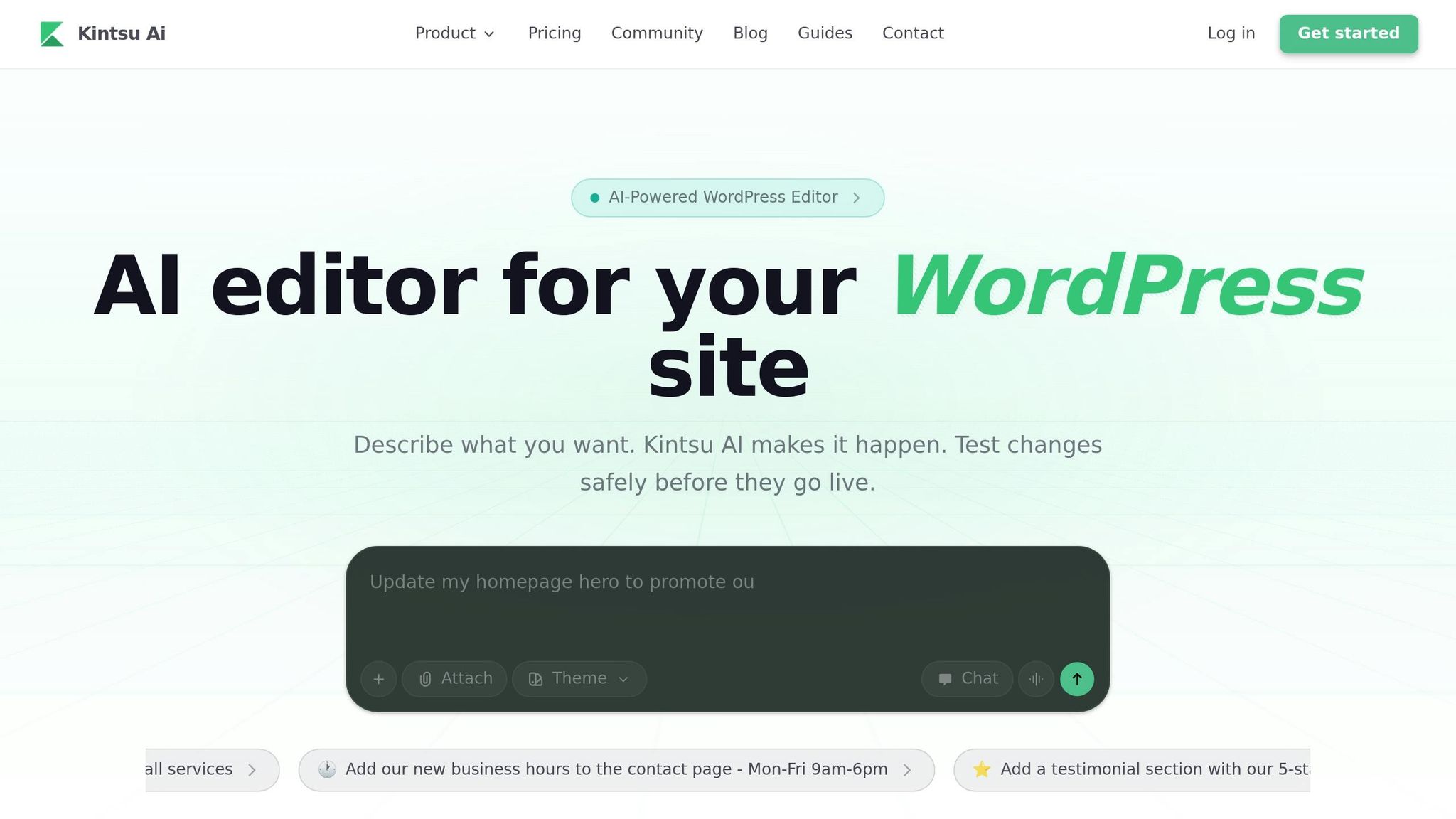
Kintsu.ai integrates conversational AI into WordPress site management, allowing users to debug and resolve issues using plain language instead of diving into code. Whether it's simple content updates or tackling intricate problems, Kintsu.ai connects to your site in under five minutes on popular hosts like WP Engine, Kinsta, and SiteGround.
Kintsu.ai Features
The standout feature of Kintsu.ai is Builder Chat, a conversational interface where you describe issues in everyday language and receive immediate diagnostics and solutions. For example, saying, "my checkout page is blank", prompts the AI to analyze logs, identify potential causes like a PHP error or plugin conflict, and apply a fix automatically.
Smart Guardrails ensure safer troubleshooting by suggesting alternatives when a requested change might disrupt your site's layout or functionality. Additionally, Plugin Conflict Detection alerts you to potential issues before implementing changes that could disable critical features.
With the Safe Edit Pipeline, all updates are made in a sandbox environment first. You can preview the results, confirm everything works, and then publish to your live site. If something doesn’t go as planned, Granular Rollback allows you to undo specific changes without affecting other updates.
For more persistent issues, Kintsu.ai provides Root Cause Analysis. You can ask why a problem keeps occurring, and the AI will trace it back to its source - whether it’s a missing bracket, a misconfigured database query, or non-compliant code. You can also request a Full System Audit, which identifies problems like misplaced logic, performance slowdowns, or accessibility challenges across your entire site.
How WordPress Users Benefit from Kintsu.ai
Kintsu.ai’s sandbox previews and rollback features make it easier to manage risks while speeding up fixes, benefiting agencies, freelancers, and individual site owners alike.
Agencies managing multiple client sites can save significant time. Instead of manually combing through logs or testing fixes, you can describe the issue, validate the AI’s solution in the sandbox, and move on to other tasks. With the Business plan ($55/month, billed annually), you can manage multiple sites from one dashboard, complete with team roles and permissions.
Freelancers can handle complex errors without needing advanced technical skills. If a client reports a problem, you can brainstorm solutions with the AI in Discussion Mode, skipping tedious trial-and-error debugging. Whether it’s a WooCommerce checkout issue or a custom post type conflict, you can resolve problems faster and more efficiently.
Individual creators gain powerful troubleshooting tools without needing to write code. For instance, if your site is running slowly, you can ask the AI to "identify performance bottlenecks." It will scan for issues like unoptimized images, render-blocking assets, or unnecessary database queries. Plus, with the Free plan offering support for one site and 10 AI edit credits, it’s simple to test the platform before deciding to upgrade.
How to Debug WordPress with Conversational AI
Using conversational AI to debug WordPress simplifies complex troubleshooting tasks. Here's a quick guide to debugging WordPress in three steps, without needing to manually edit configuration files or sift through error logs.
Step 1: Activate Debug Mode
To start, you’ll need debug mode enabled so the AI can access error messages. Traditionally, this required editing the wp-config.php file via SSH or SFTP to turn on WP_DEBUG and WP_DEBUG_LOG. Now, you can simply ask the AI to enable debugging or use tools provided by your hosting platform. For instance, MyKinsta offers a one-click option to display PHP errors, notices, and warnings.
Once debug mode is active, errors will either appear directly on your screen or be logged in a debug.log file. From here, you can describe your issue to the AI. For example: "The homepage hero section disappeared after my last update. Can you figure out why?"
With debug mode running, you’re ready to dive into the logs and pinpoint the issue.
Step 2: Analyze Logs to Find the Root Cause
Instead of just addressing surface-level issues, ask the AI to identify the underlying problem. Conversational AI scans the debug.log file for errors such as fatal issues, warnings, or deprecated functions. It maps these errors back to specific file paths and line numbers. For example, if your checkout page isn’t loading, the AI might detect a PHP syntax error, a missing bracket, or a plugin conflict.
The AI goes beyond identifying what’s broken - it helps you understand why it broke, ensuring a lasting fix. As Joel Olawanle, Technical Editor at Kinsta, explains:
"AI isn't here to replace WordPress developers - it's here to make us faster, our code cleaner, and less prone to boring mistakes."
Once the root cause is clear, you can proceed to apply the necessary fixes.
Step 3: Apply Fixes and Verify Results
After diagnosing the issue, the AI provides targeted code fixes, modifying only the lines that need adjustment. Platforms like Kintsu.ai even allow you to preview suggested changes in a sandbox environment before applying them. This ensures you can test the fix without affecting your live site.
Once the fix is applied, ask the AI to double-check the syntax and look for any unintended side effects. If something doesn’t work as planned, you can use rollback features to undo specific changes while keeping other updates intact. For added convenience, you can also request a brief summary of the issue and the fix for future reference.
Advanced Conversational AI Debugging Capabilities
Conversational AI goes beyond basic troubleshooting to tackle more intricate debugging challenges. These advanced features are reshaping how WordPress developers handle persistent and complex site issues.
Detecting Patterns in Error Logs
One standout feature of conversational AI is its ability to recognize patterns in error logs - something manual reviews often miss. Instead of combing through logs line by line, the AI categorizes errors by severity, frequency, and type. For instance, it might spot an N+1 query issue hidden in a loop that's slowing down your site or flag misplaced logic, such as data processing code embedded in presentation files.
The AI doesn't stop there. It examines how different code components interact and considers past fixes to understand why certain errors keep resurfacing. As Kim Døfler, Founder of Trigger Growth, puts it:
"Using ChatGPT, you can ask follow-up questions to dive deeper into the context of specific errors, making the troubleshooting process more interactive and comprehensive."
You can even paste specific log outputs to help the AI refine its pattern detection.
What’s more, the AI can predict and prevent future problems by offering solutions based on established best practices. It also provides "smart guardrails" to help you avoid potential conflicts before they escalate into major issues. If a particular fix doesn’t work, you can ask, “What solutions have we tried so far?” to avoid retracing ineffective steps and enhance its ability to detect patterns.
These capabilities naturally lead to a more interactive, multi-step approach to debugging.
Multiple Queries for Complex Problems
Conversational AI shines in handling complex debugging scenarios through iterative queries. Think of it as a collaborative problem-solving session - similar to pair programming - where you guide the AI through the issue step by step. For example, you might ask, “What are three different strategies I could use to debug this race condition?” to explore multiple approaches simultaneously.
The AI’s Discussion Mode allows you to brainstorm and compare options before making changes to your live site. You can even request a prioritized action plan by asking the AI to “break down the suggestions into an ordered list of steps... from most critical to optional.” If the AI suggests something incorrect, explaining why it’s wrong prompts it to re-evaluate and offer a more accurate response.
To streamline the process further, you can narrow the AI’s focus by defining what the problem isn’t. For example, stating, “I’ve ruled out network issues,” helps the AI zero in on relevant solutions, saving time and effort.
These advanced debugging features make troubleshooting more efficient, interactive, and precise.
Conclusion
Debugging WordPress no longer has to mean hours spent combing through logs or struggling with complex code. Conversational AI is changing the game by allowing users to describe their issues in plain English and receive detailed root cause analyses, not just surface-level fixes. This shift is shaping a new generation of tools that seamlessly integrate these capabilities.
A great example is Kintsu.ai, which brings 25+ AI-powered features to WordPress debugging. It's already trusted by over 500 WordPress creators. The platform embraces a straightforward philosophy: "Don't rebuild. Refine." Whether you're facing a blank hero section, plugin conflicts, or performance hiccups, the AI empowers users to make focused, confident adjustments instead of resorting to disruptive overhauls.
What's most notable about this approach is how accessible it is. You don't need to be a developer to fix problems, improve performance, or boost accessibility. With its conversational AI design, this method aligns perfectly with the guide's emphasis on simplicity and efficiency, ensuring issues are addressed effectively - often before they escalate.
FAQs
What data does the AI use from my WordPress site to debug issues?
The AI examines details like your site's structure, layout, content, styling, and key elements - such as headers, footers, and components - to spot and diagnose potential problems. By doing so, it delivers troubleshooting solutions specifically tailored to your WordPress site.
How can I use conversational AI safely without breaking my live site?
To ensure the safe use of conversational AI, always test changes in a sandbox environment before rolling them out to your live site. Tools like Kintsu.ai offer features that let you experiment and refine updates in a controlled space, minimizing the risk of unexpected issues. For more delicate updates, it’s wise to take an extra careful approach - conduct extensive testing and rely on built-in safeguards to keep your live site running smoothly.
When should I still involve a developer instead of relying on AI?
You should bring in a developer when tasks demand advanced coding skills, significant structural adjustments, or intricate troubleshooting. Examples include resolving complex technical issues or building custom features that go beyond what AI tools can handle or interpret accurately.