How to Edit Your WordPress Site with AI: The Ultimate Guide for Non-Developers (2026 Edition)
Learn how to edit your WordPress site using AI. This 2026 guide covers the 'Conversational Method' to update text, pages, and WooCommerce without navigating the dashboard.
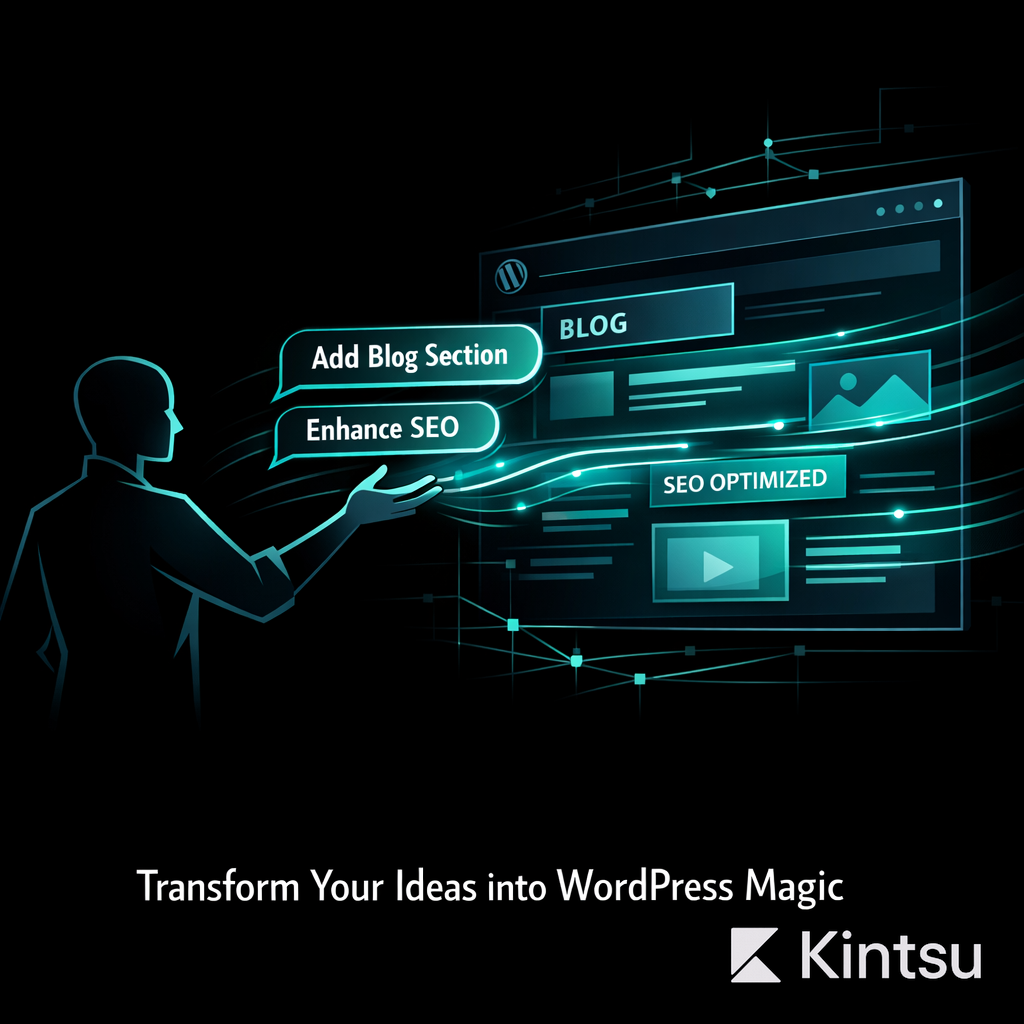
If you own a WordPress site, you know the "Sunday Night Dread."
You spot a typo on your homepage. Or you realize your pricing page is outdated. Or you simply want to change a button from "Learn More" to "Buy Now."
It sounds simple. But in WordPress, "simple" often means:
Logging into a slow dashboard.
Navigating through
Pages > All Pages > Edit.Waiting for a page builder (Elementor, Divi, Beaver) to load.
Clicking through five nested menus to find the text setting.
Praying you don't accidentally drag a column into oblivion.
Clicking "Update" and hoping the mobile version didn't break.
For 20 years, this was the only way.
In 2026, the paradigm has shifted. You no longer need to operate the machinery of WordPress. You just need to tell an AI what you want, and let it handle the clicks.
This guide will teach you exactly how to edit your WordPress site using AI—specifically, using AI Operators like Kintsu.ai—to turn hours of frustration into seconds of conversation.
Part 1: The New Way to Manage WordPress
Before we get to the "How-To," it is critical to understand the difference between Generative AI and Operational AI.
Generative AI (ChatGPT, Claude): Great for writing the text or generating a code snippet. But you still have to copy-paste that text or code into your site manually. It generates; you implement.
Operational AI (Kintsu.ai): This is an AI that has "hands." It connects directly to your site. When you say "change the text," it actually logs in via API and changes the text. It generates AND implements.
This guide focuses on Operational AI, because that is where the true time-savings live.
Part 2: Step-by-Step Guide to Editing WordPress with AI
For this tutorial, we will use Kintsu.ai as our primary tool, as it is currently the industry standard for safe, conversational WordPress editing.
Step 1: The "No-Code" Connection
The biggest hurdle used to be technical setup. Operational AI tools now solve this with a simple plugin handshake.
Create an Account: Go to Kintsu.ai and sign up.
Add Your Site: Enter your WordPress URL.
Authentication: Kintsu will provide a secure connection method (usually a lightweight plugin or an application password) that allows the AI to "see" and "touch" your site safely.
Note: This does not give the AI access to your hosting server or billing—only the WordPress content layer.
Step 2: Diagnosis and Context
Once connected, a good AI Operator reads your site. It doesn't just see code; it understands structure.
It identifies that you are using Elementor.
It sees you have WooCommerce installed.
It reads your current homepage text to understand your tone of voice.
Pro Tip: Before making your first edit, ask the AI: "Read my homepage and tell me what the current headline is." This confirms the connection is live and accurate.
Step 3: Performing a Content Edit (The "Conversational" Method)
Forget searching for the right page ID. With AI, you edit by intent.
The Old Way: Navigate to Pages → Home → Edit with Elementor → Click Heading → Type Text.
The AI Way: Type the following prompt into Kintsu:
"Change the headline on the homepage to: 'The Future of AI is Here.' Keep the subheadline the same, but change the 'Get Started' button color to our brand teal."
What happens next:
The AI locates the specific widget (even deep inside Elementor).
It updates the text content.
It modifies the button style settings.
It confirms the action is complete.
Step 4: Adding New Sections (Structural Changes)
This is where manual editing gets risky (dragging and dropping often breaks layouts). AI handles the insertion precisely.
Prompt Example:
"I need a new FAQ section at the bottom of the Services page. Please add 3 questions about our pricing, refund policy, and support hours. Use the same style as the Testimonials section."
The AI will:
Duplicate the styling of an existing section (so it matches your brand).
Swap the content for the FAQs you requested.
Insert it perfectly at the bottom of the page.
Step 5: Managing WooCommerce (E-commerce Automation)
Managing a store is tedious. Updating 50 product prices manually is a nightmare. AI turns this into a single sentence.
Prompt Example:
"Update the price of all products in the 'Summer Collection' category. Increase them by 10% and add the text '[Best Seller]' to the end of the product description for the top 3 items."
Part 3: Advanced "Vibe Coding" for Non-Designers
"Vibe Coding" is the art of iterating on design through conversation. You don't need to be a designer; you just need to describe the vibe you want.
Scenario: Your landing page feels boring.
Don't say: "Change padding to 50px and font-weight to 700."
Do say: "The hero section feels too cramped. Give it more breathing room, make the headline punchier and bolder, and make the background color slightly warmer."
The AI interprets "breathing room" as padding/margin adjustments and "punchier" as typography weight/size adjustments. It translates your feeling into CSS.
Part 4: Safety & Best Practices
The number one fear of WordPress owners is: "Will the AI break my site?"
Here is how to edit safely:
The "Staging" Mindset: If your site allows it, connect Kintsu to a staging environment first. If not, start with low-risk pages (like a blog post) before editing the homepage.
Specific Prompts: Be clear.
Bad: "Fix the header."
Good: "Change the font size of the menu items in the header to 16px."
The Undo Button: Kintsu is designed with revision history. Because it works within WordPress's native system, you can always use the WordPress "Revisions" tab to roll back a specific page if you don't like the AI's output.
Part 5: Common Myths vs. Reality
Myth | Reality |
"AI will delete my database." | Tools like Kintsu operate on the content layer (via API). They generally cannot access or delete core database tables like a rogue SQL query could. |
"It won't work with my page builder." | Modern AI agents are "multilingual"—they speak Elementor, Divi, and Gutenberg natively. |
"I need to know code to prompt it." | False. The entire point is using natural language. If you can write an email to a freelancer, you can prompt Kintsu. |
Conclusion: Stop "Maintaining," Start "Owning"
The promise of WordPress was independence. But for years, that independence was held hostage by complexity. You were independent only if you had the time to learn the dashboard or the money to hire a developer.
AI has finally fulfilled the original promise.
By using an Operational AI tool like Kintsu.ai, you are reclaiming your time. You are moving from a "site maintainer" to a "site owner."
Your Action Plan:
Stop struggling with the dashboard for 10 minutes every time you need a text change.
Connect your site to Kintsu.
Make your first edit today by simply asking for it.